First SaleFree course · 5 stages, 14 lessons
From an empty account to your first sale
First Sale is a free Tanqory Academy course: 14 video lessons in 5 stages, from an empty account to your first order. Each stage has a worksheet listing what its lessons ask you to decide, so you have it ready before you press play.
- 14 video lessonsWatch them here or on YouTube
- 5 worksheetsOne per stage, on this page
- FreeEvery Tanqory Academy lesson
- No sign-inNothing to register
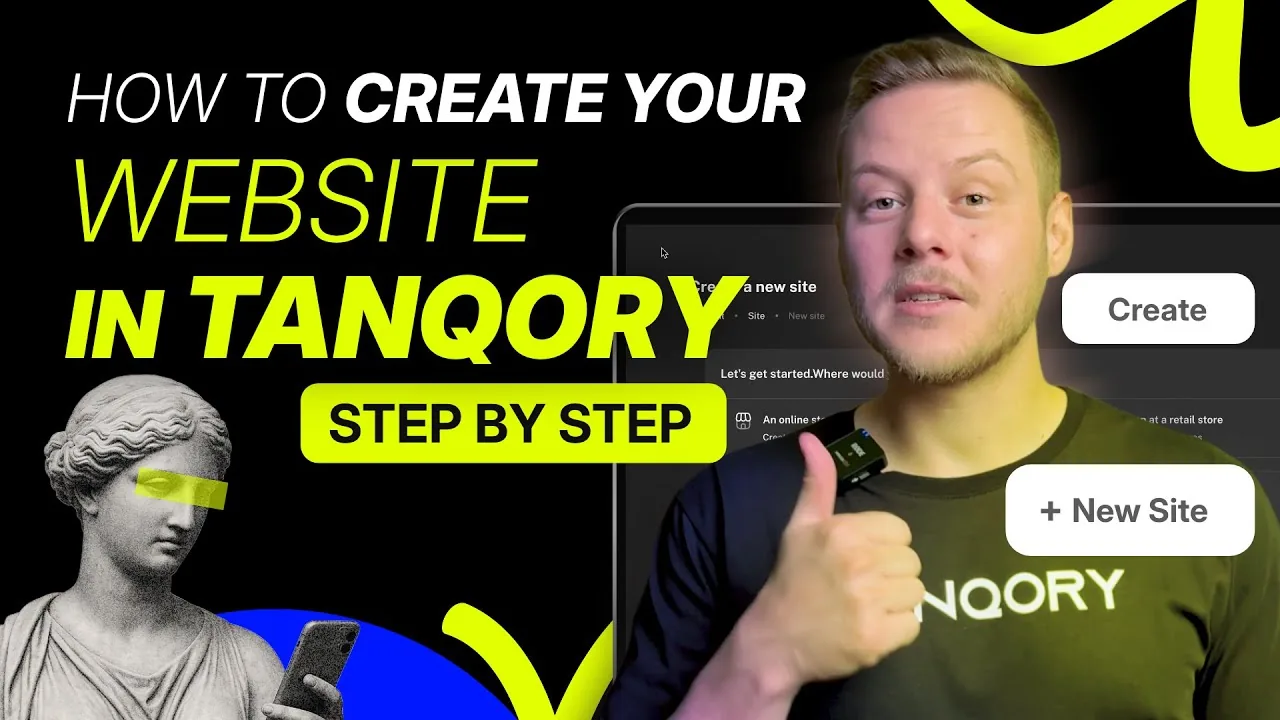
Lesson 1 of 14. The player loads from YouTube (privacy-enhanced mode) only when you press play.
Watch on YouTube (opens YouTube in a new tab)What you will learn
Who it is for
For anyone opening a first online store on Tanqory. Each stage pairs its video lessons with a worksheet: decide the details first, then follow the lessons in your own admin. Take the stages in order, or start with the one you need.
Good for
- Opening your first online store
- Checking your setup before launch day
- Showing a new teammate around the admin
Stages, each with its worksheet (5)
- Open your store: your site created, the setup guide open and your store basics set.
Worksheet · 7 items
- What you sell, in one line, and its type: physical, digital, services or dropshipping
- Where you sell first, such as your online store or social media
- Your business stage and size
- Store name and contact details
- Currency, weight unit and time zone
- Billing information for your legal and financial records
- The order number format you want
- Add what you sell: your first products listed with prices, variants and stock, grouped into collections.
Worksheet · 7 items
- A title, a description and photos for each product
- The price, and whether tax applies
- Options and variants, such as size, color or material
- SKU or barcode, and the stock count at each location
- Packed weight, so shipping rates come out right
- Draft while you work on a product, Active when it is ready to sell
- Collections: cover image, title, description and the conditions that fill them
- Get paid and deliver: checkout ready to take payment, with shipping rates and taxes set where you sell.
Worksheet · 6 items
- The payment provider you connect, and the details its verification asks for
- One general shipping rate as your default
- Custom rates for products or conditions that ship differently
- Shipping zones, and the locations you fulfill from
- The delivery options buyers see at checkout
- Every country where you collect tax
- Get ready to launch: policies published, your domain connected, a plan chosen and the store ready to open.
Worksheet · 6 items
- Return rules: return window, return shipping, restocking fee and final sale items
- Policy pages: returns and refunds, privacy, terms, shipping and contact information
- A domain: a new one to buy, or access to the DNS records of the one you own
- Your plan, billed monthly or yearly
- A share image for social previews, plus your homepage title and meta description
- A password page message for visitors who arrive before launch
- Your first order: a launch discount ready to switch on and a routine for every order that comes in.
Worksheet · 6 items
- Your launch discount: percentage or fixed amount, start time and optional end date
- The moment you switch it live; until then it stays inactive
- How you pack and ship an order, and where its tracking number goes
- The shipping update your customer gets
- Your answer to a refund or return request
- When you edit or cancel an order
The 14 lessons, stage by stage
Each lesson page has the video with its steps written out beside it. Take them in order, or start with the stage you need.
- Stage 1 · Lesson 1 of 14How to Create a Website in Tanqory
Open the Sites page and click New Site
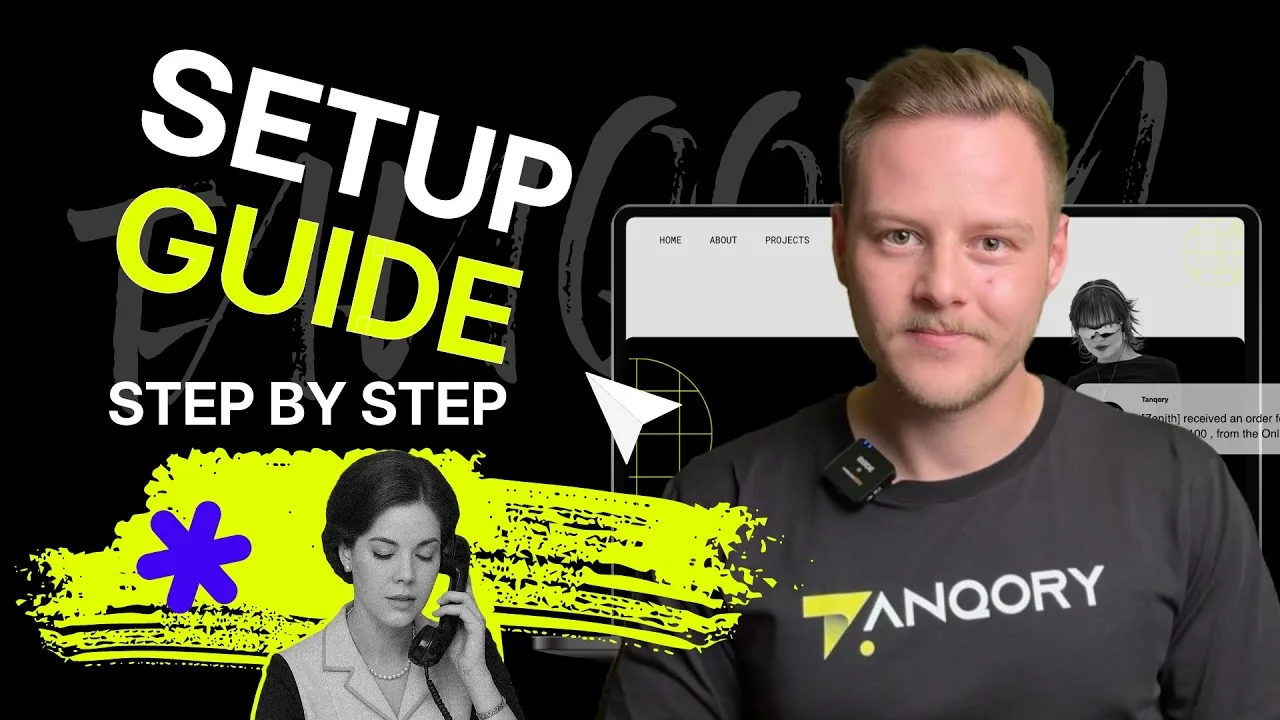 Stage 1 · Lesson 2 of 14Setup Guide in Tanqory
Find the Get ready to sell section on your Dashboard
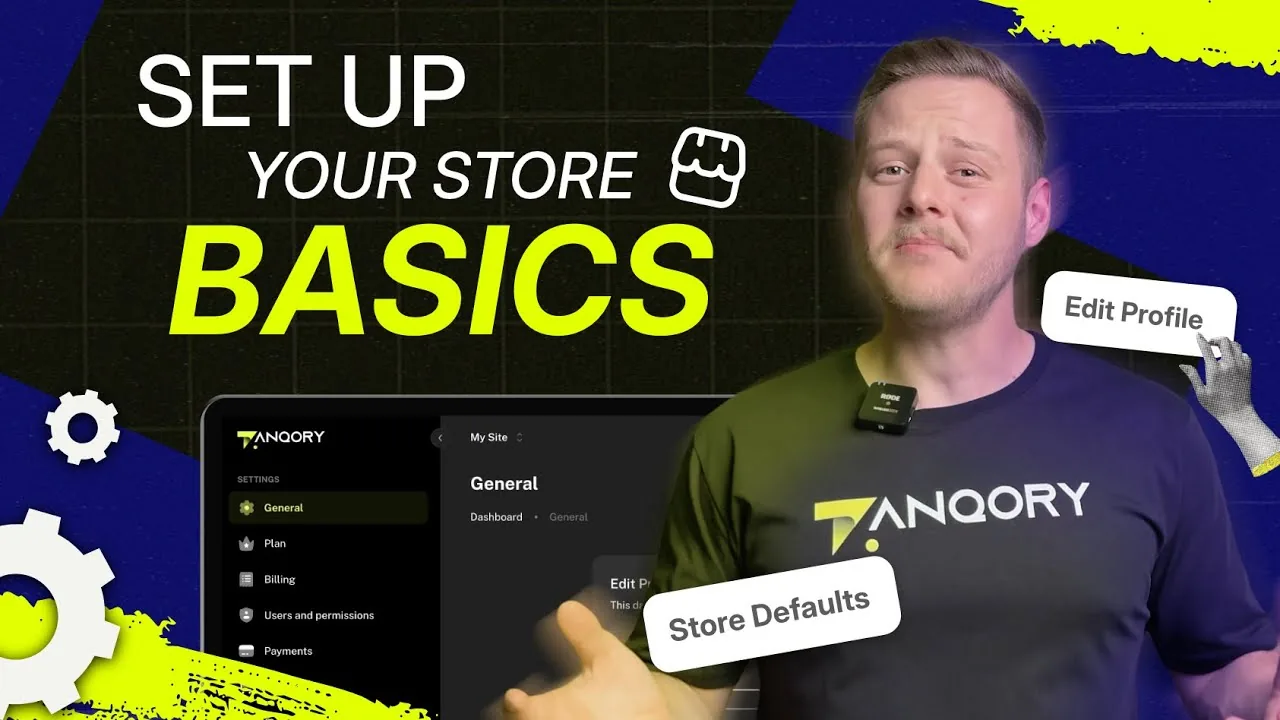 Stage 1 · Lesson 3 of 14Set Up Your Store Basics with Tanqory
Edit your profile: store name, store image and an optional phone number
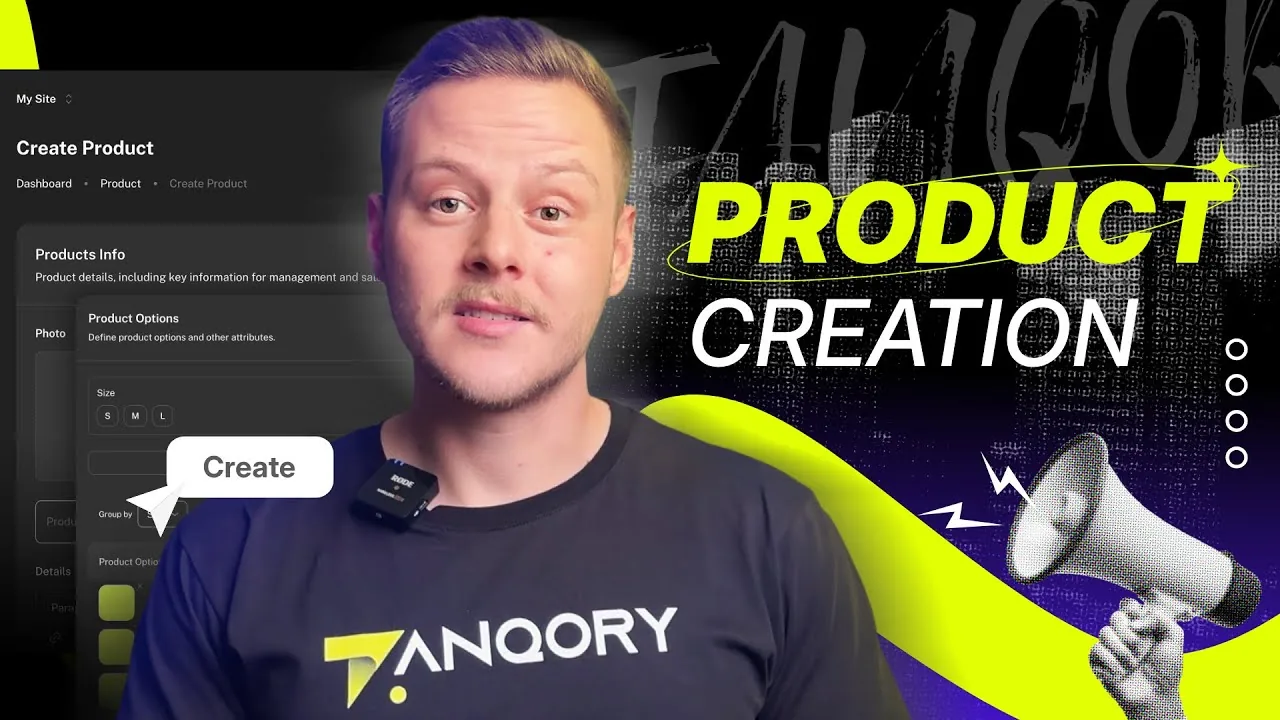 Stage 2 · Lesson 4 of 14Product Creation in Tanqory
Go to Products, then Products, and click Add new
 Stage 2 · Lesson 5 of 14Product Collections in Tanqory
Go to Products, then Collections, and click Add new collection
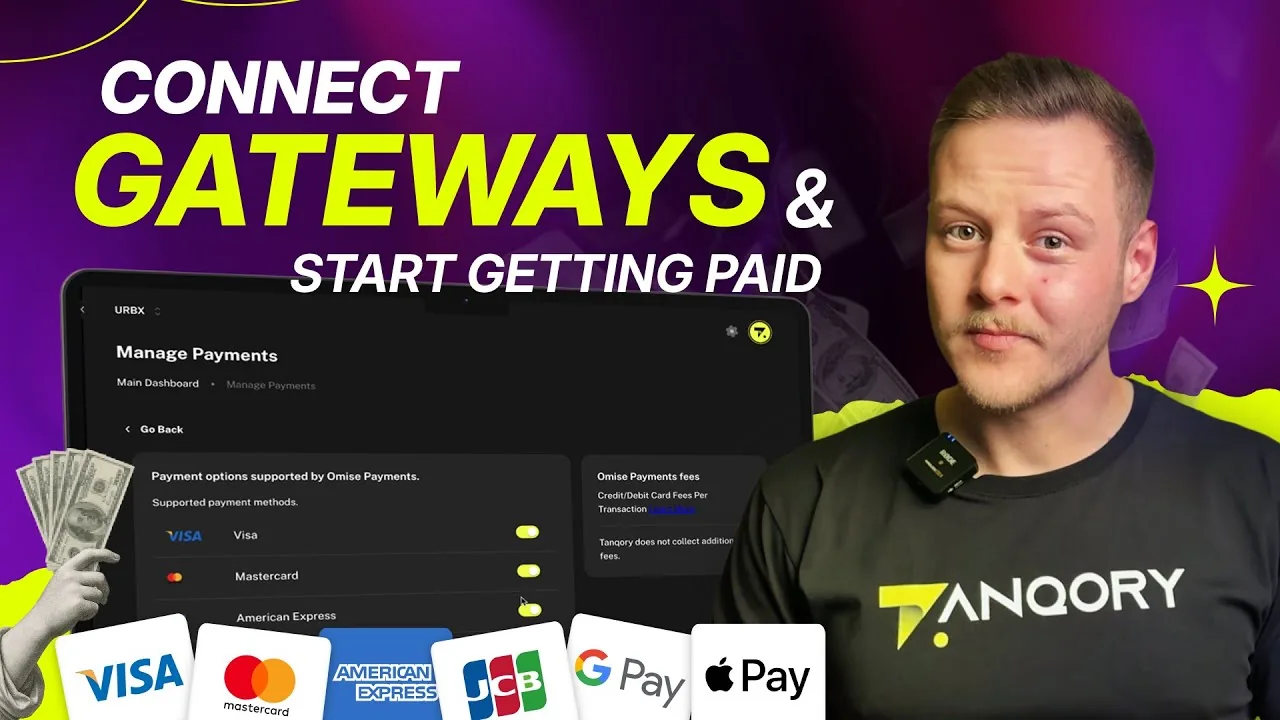 Stage 3 · Lesson 6 of 14Connect Payment Gateways & Start Getting Paid Worldwide with Tanqory
Open Settings, then Payments
 Stage 3 · Lesson 7 of 14Set Up Shipping and Delivery Options with Tanqory
Open Settings, then Shipping and delivery
 Stage 3 · Lesson 8 of 14Configure Taxes and Duties in Tanqory
Open Settings, then Taxes & Duties
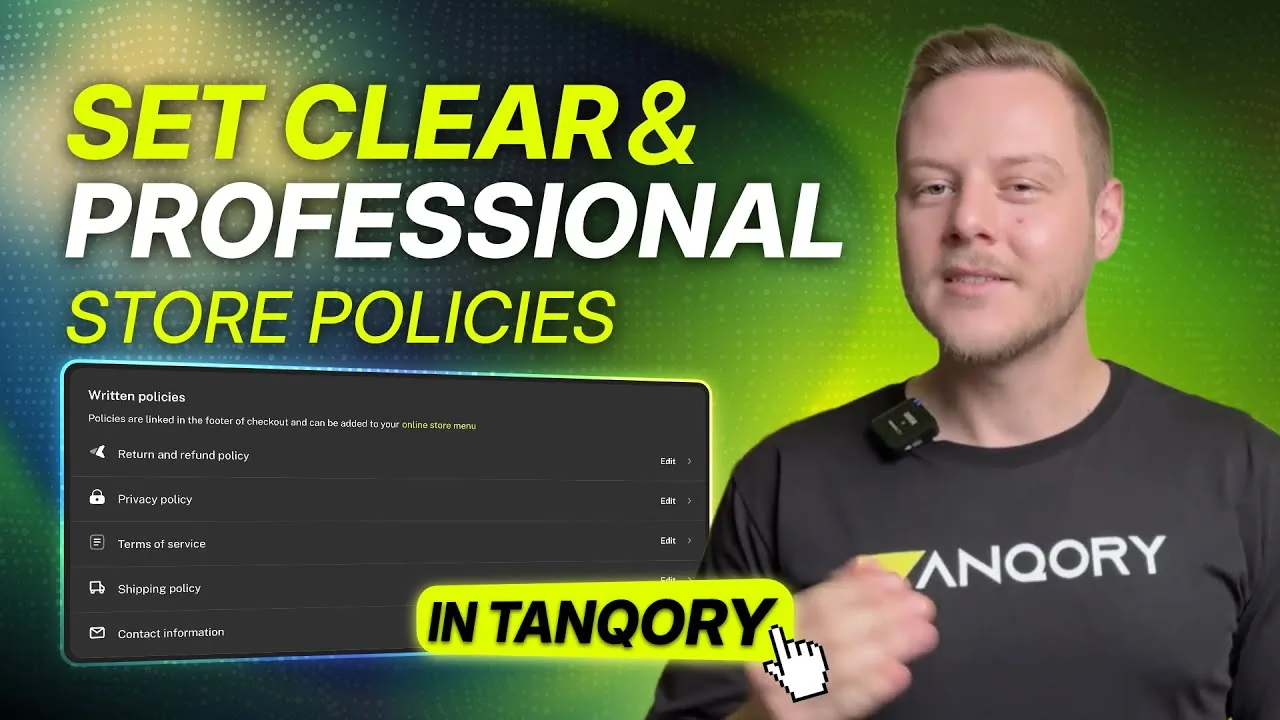 Stage 4 · Lesson 9 of 14Set Clear and Professional Store Policies in Tanqory
Open Settings, then Policies
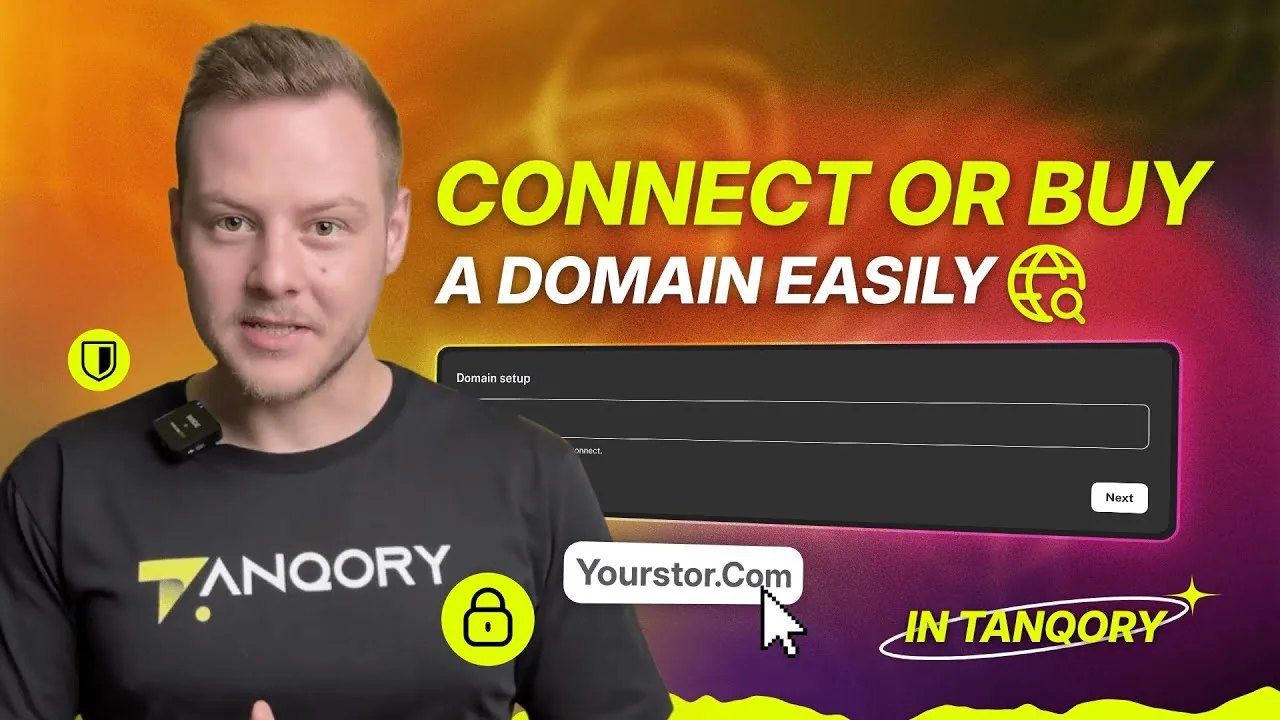 Stage 4 · Lesson 10 of 14Connect or Buy a Domain Easily with Tanqory
Open Settings, then Domains
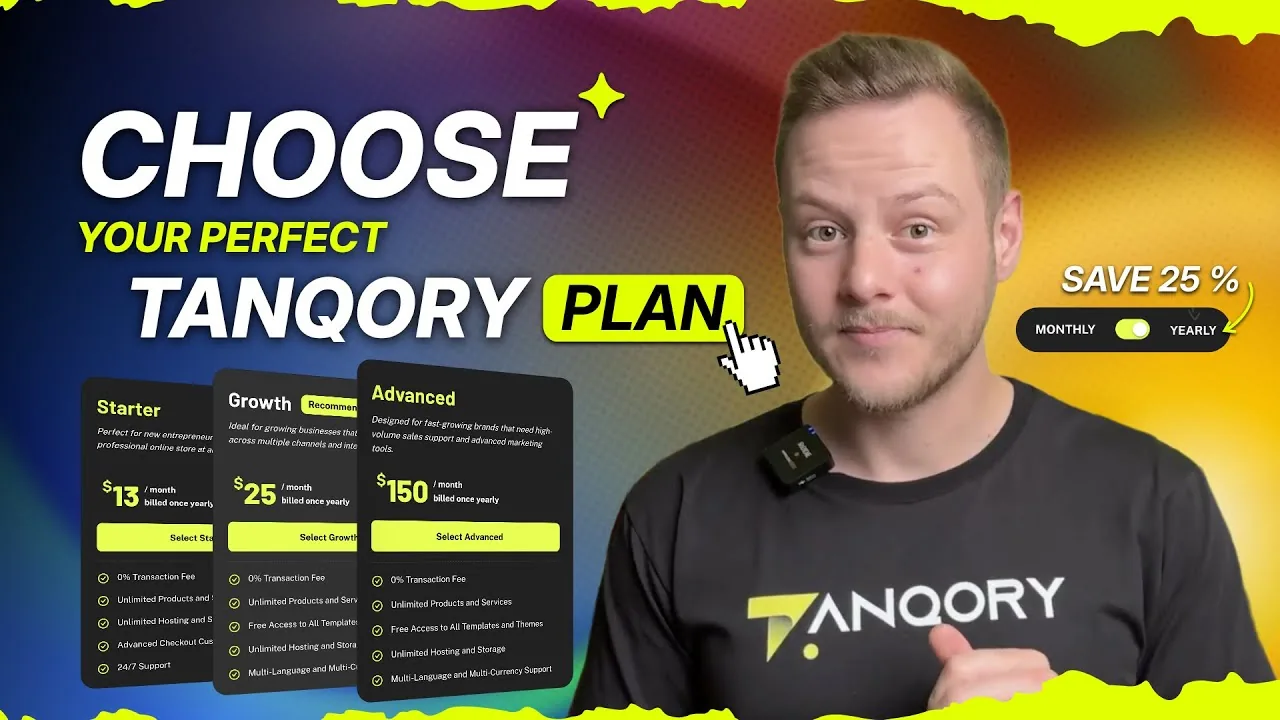 Stage 4 · Lesson 11 of 14Choose Your Perfect Tanqory Plan
Compare the Starter, Growth and Advanced plans
 Stage 4 · Lesson 12 of 14Launch Like a Pro
Open Online store and go to Preferences
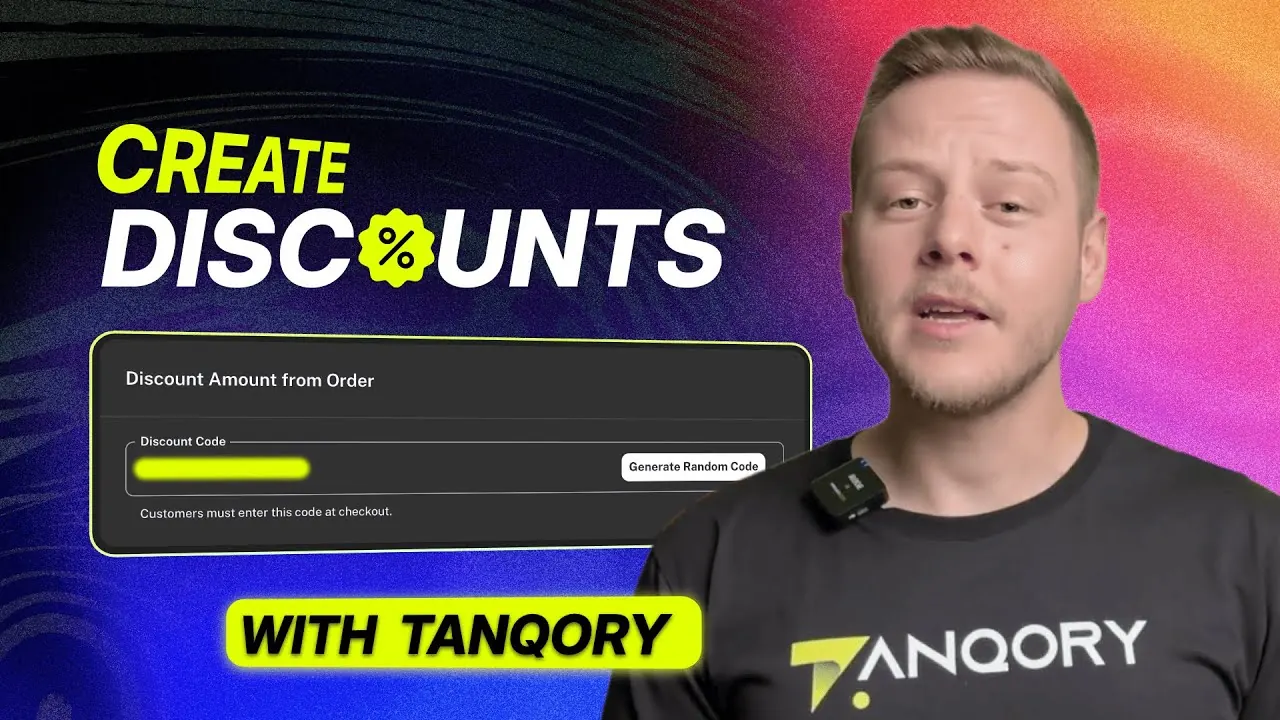 Stage 5 · Lesson 13 of 14Create Discounts with Tanqory
Open Discounts from the left hand menu
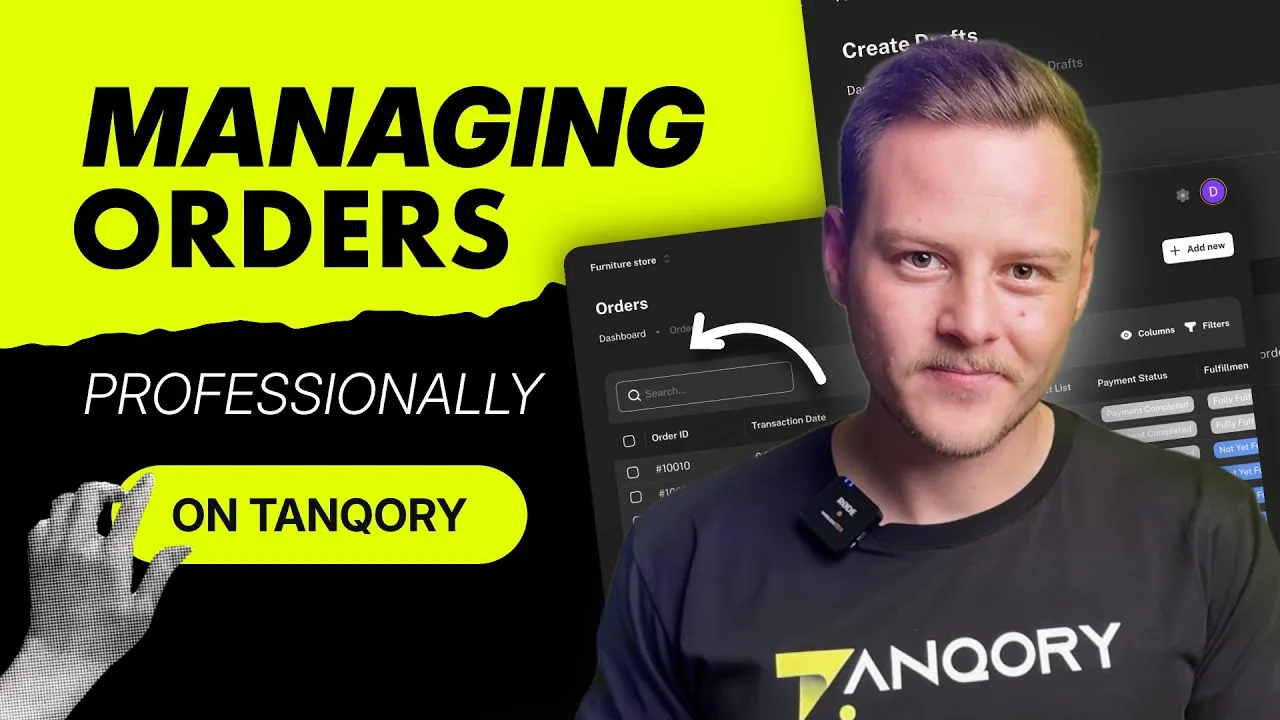 Stage 5 · Lesson 14 of 14Managing Orders Professionally in Tanqory
Read the Orders table: order ID, transaction date, customer, items and total
Or describe your store and let AI build it
Describe what you sell and Tanqory AI builds a store ready to sell: brand, theme, pages and products. You review it and change what you like, so launch day comes from one sentence instead of a week of setup.
- Acts in your admin only after you confirm
- Everyday AI work uses no AI credits
- Answers how-to questions from the Help Center
Build a store for my handmade ceramics: brand, theme, pages and the first products.
I will draft your store:
- Open the Sites page and click New Site
- Choose where you want to sell, such as an online store or social media
- Say whether you are just starting or already selling
Nothing changes until you confirm.
Questions about the course
Who is this course for?
Anyone opening a first online store on Tanqory, whether you start from an idea, sell on social media today or are moving a shop online. The lessons start from an empty account and show the steps in the Tanqory admin.
Do I need to sign up or pay to take it?
No. Every lesson is a free video you can watch on this page or on YouTube, with nothing to register. To follow along in your own store, you need a Tanqory account.
How does the course work?
Five stages take you from an empty account to your first order. Each stage has two to four video lessons and a worksheet that lists what to decide or have at hand before you start. Watch the lessons in order and do each step in your admin as you go.
What is in the worksheets?
The decisions and details each stage's lessons ask for, taken from the lessons' own steps: what you sell and its type, your currency and time zone, prices, variants and stock, shipping zones and rates, return rules, your domain and your launch discount. All five worksheets are on this page, free.
Is there a deadline?
No. The lessons stay on this page and on YouTube, so you can take them at your own pace and come back to any stage when you need it.
Can Tanqory AI do these steps for me?
Yes. Describe what you sell and Tanqory AI builds a store ready to sell: brand, theme, pages and products. The assistant in your admin then does steps across products, orders, discounts and settings, and waits for your confirmation before it changes anything. Everyday AI work like this uses no AI credits.
Where do I start if my store is already open?
Jump to the stage you need. Every lesson in the list opens its own page with the video and its steps written out, and the learning paths group every Tanqory Academy lesson by topic.
Go deeper in the Help Center
Step-by-step articles on the same tasks, written by the Tanqory team.
- Create and Edit Pages
Pages hold standalone content on your online store, such as an About us page or your store policies, separate from your products and collections. You create one from the Pages area, give it a title and content in a rich text editor, and set its web address, visibility, and theme template. This article walks through the page editor and how to create and edit a page.
- Adding Your First Product
The new product form section by section, what belongs in each field with a worked example to copy the shape of, and what happens when you save: a new product is Active to begin with, so it goes live on your storefront the moment you do.
- Store Information Settings
The Settings General page, where you set your store's name and contact details, its defaults for currency, units, and timezone, your order number format, and how orders are processed.
- Manage Product Status (Active, Draft, Unlisted)
Every product carries a status, Active, Draft, or Unlisted, that decides where shoppers can find it. This article covers what each status does on the storefront, how to change one and save it, where status shows up outside the editor, and how status differs from archiving or deleting a product.
First Sale · 14 lessons
Ready for your first order?
Start free on Tanqory and follow each step in your own admin as you watch. The last lesson takes an order from its payment status to tracking and the shipping update.