Getting StartedLesson 4 of 6
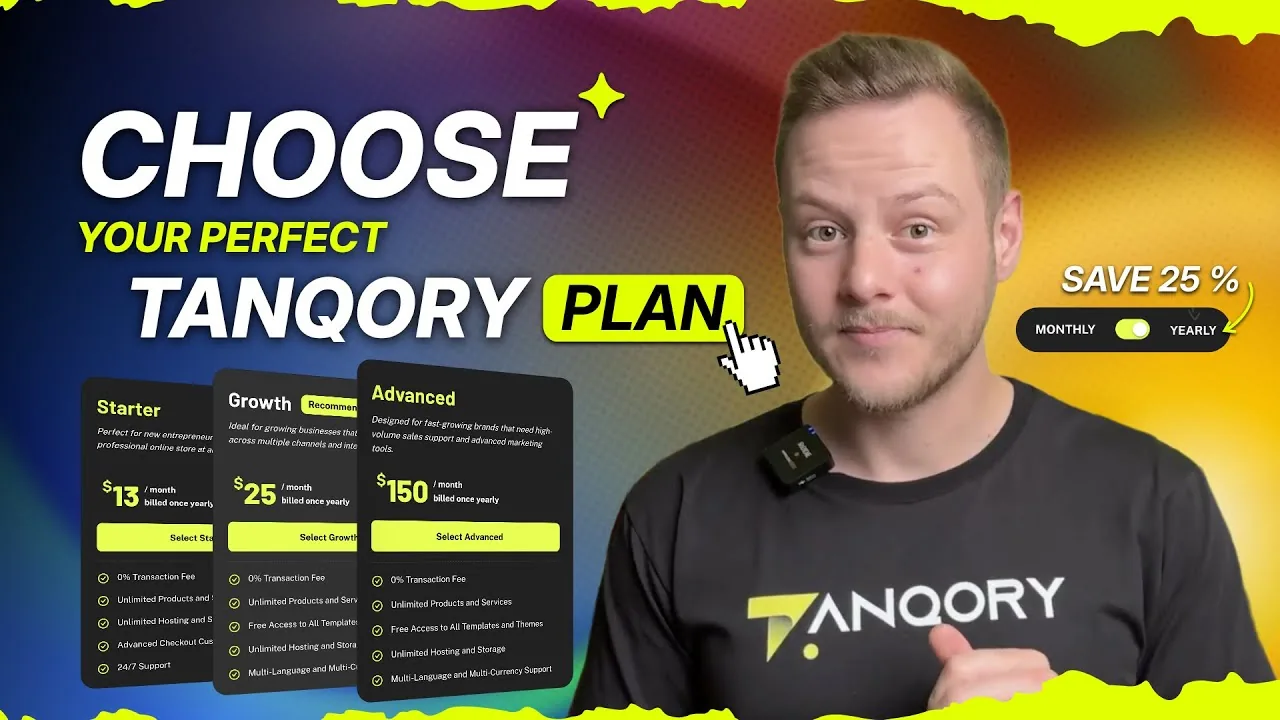
Choose Your Perfect Tanqory Plan
Save More, Grow Faster
Starter, Growth or Advanced: see which plan fits a new store, a growing brand or a high volume team.
- Video lessonWatch it here or on YouTube
- FreeEvery Tanqory Academy lesson
- No sign-inNothing to register
- In your adminPlan
The player loads from YouTube (privacy-enhanced mode) only when you press play.
Watch on YouTube (opens YouTube in a new tab)What you will learn
About this lesson
Pick the plan that fits where your business is today and where you want it to go next.
Where it lives in the admin
- Plan
In this lesson (4)
- Compare the Starter, Growth and Advanced plans
- Which plan fits a new store, a growing brand or a high volume team
- How the yearly billing toggle lowers what you pay over a year
- Select a plan and complete checkout to activate your subscription
Or hand the job to Tanqory AI
Ask the assistant in your admin and it answers from the Tanqory Help Center, in the context of your store. One question replaces a search through settings and articles, so a new teammate gets going without waiting for you.
- Acts in your admin only after you confirm
- Everyday AI work uses no AI credits
- Answers how-to questions from the Help Center
How does yearly billing change what I pay for my plan?
From the Help Center, the steps are:
- Compare the Starter, Growth and Advanced plans
- Which plan fits a new store, a growing brand or a high volume team
- How the yearly billing toggle lowers what you pay over a year
Nothing changes until you confirm.
Go deeper in the Help Center
Step-by-step articles on the same task, written by the Tanqory team.
- Compare Plans
The Compare plans page lays the five Tanqory plans side by side, with monthly or annual pricing, team-member and location limits, transaction fees, and included features. It also has tabs to buy AI Credits, top up a Shipping Balance, and migrate your store to a managed cloud.
- Pick Your Plan
Choose or change the plan your store runs on. You start from Change plan on the Plan page, which opens the Compare plans page, then upgrade, downgrade, or switch between monthly and annual. You can also cancel and reactivate your plan from the same page.
- Subscription Overview
Everything about your store subscription lives under Settings: your current plan and what it includes, your billing cycle and next charge, your payment method and invoices, and the add-ons you can top up. This is the overview that ties them together and explains how billing, cancellation, and refunds work.
- Add a Payment Method for Subscription
This is the card Tanqory charges you with, not the one your customers pay you through. It covers your subscription and anything else billed to the account, and it is added from the billing preferences page behind Settings, Billing. Choose a card or PayPal, fill in the details, and set it as the default so future bills go to it.
More in Getting Started
Getting Started has 6 lessons. Take them in order or jump to the one you need.
 Getting Started · Lesson 1 of 6How to Create a Website in Tanqory
Open the Sites page and click New Site
 Getting Started · Lesson 2 of 6Setup Guide in Tanqory
Find the Get ready to sell section on your Dashboard
 Getting Started · Lesson 3 of 6Set Up Your Store Basics with Tanqory
Edit your profile: store name, store image and an optional phone number
Next lesson · Getting Started
Set Up Billing with Tanqory
Add the payment method that keeps your subscription running, with billing details that match your business.