ProductsLesson 1 of 3
Product Creation in Tanqory
Add Products, Variants, Pricing, Inventory & Shipping
Take a product from an empty form to a live listing, with variants, pricing, stock and shipping all set on one page.
- Video lessonWatch it here or on YouTube
- FreeEvery Tanqory Academy lesson
- No sign-inNothing to register
- In your adminProducts › Products
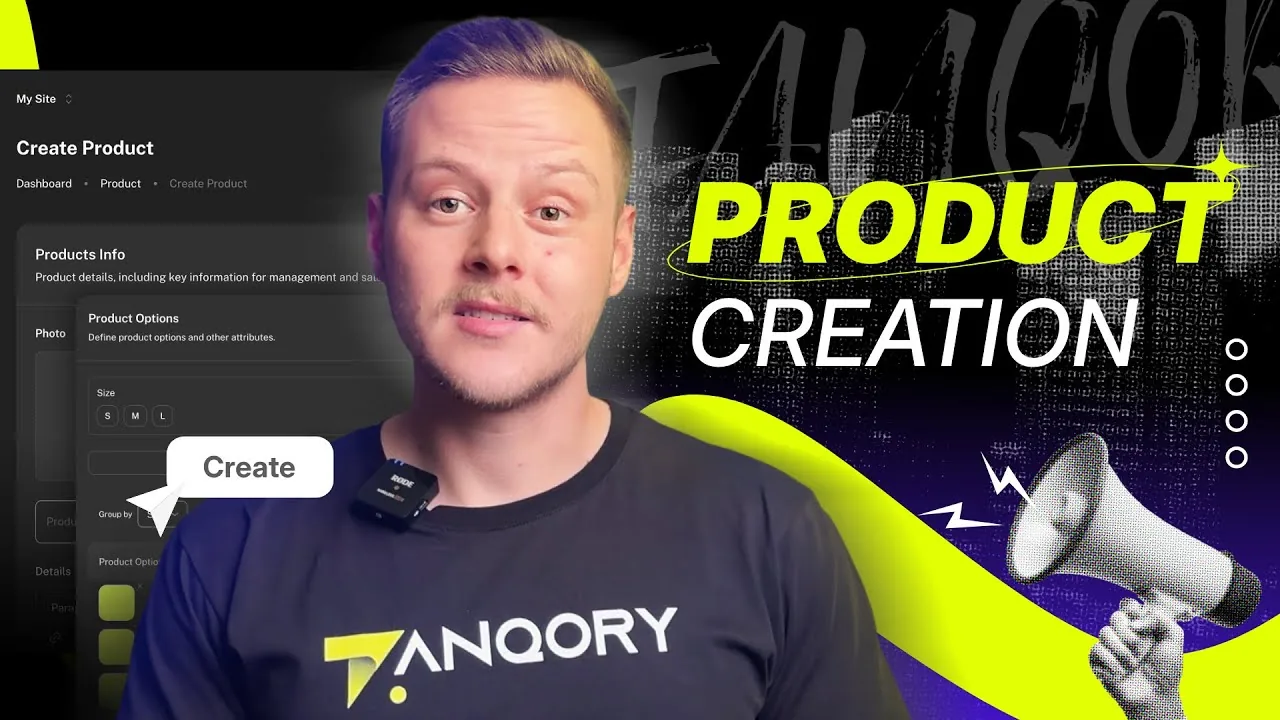
The player loads from YouTube (privacy-enhanced mode) only when you press play.
Watch on YouTube (opens YouTube in a new tab)What you will learn
About this lesson
The whole product creation workflow in one lesson: from an empty form to a product that is ready to sell on your storefront.
Where it lives in the admin
- Products
- Products
In this lesson (9)
- Go to Products, then Products, and click Add new
- Upload an image and enter the product name and description
- Set the status to Active or Draft
- Choose the theme template that shows the product on your storefront
- Set the price, cost per item and tax, and turn on stock tracking
- Set the quantity at each location and add a SKU or barcode
- Enter the weight and unit for accurate shipping rates
- Add options and variants such as size, color or material
- Click Create to publish the product
Or hand the job to Tanqory AI
Everything this lesson shows, you can also ask for in one sentence. The assistant built into your admin does the steps across products, orders, discounts, markets, settings and more, and waits for your confirmation before it changes anything. Your team spends the time on the business, not on the clicks.
- Acts in your admin only after you confirm
- Everyday AI work uses no AI credits
- Answers how-to questions from the Help Center
Add a linen shirt in sizes S to XL, track its stock and write the description.
Here is what I will do in your admin:
- Go to Products, then Products, and click Add new
- Upload an image and enter the product name and description
- Set the status to Active or Draft
Nothing changes until you confirm.
Go deeper in the Help Center
Step-by-step articles on the same task, written by the Tanqory team.
- Manage Product Status (Active, Draft, Unlisted)
Every product carries a status, Active, Draft, or Unlisted, that decides where shoppers can find it. This article covers what each status does on the storefront, how to change one and save it, where status shows up outside the editor, and how status differs from archiving or deleting a product.
- How to Add a Product
Add a product to your Tanqory store: write a clear title and description, upload images, set prices, track inventory, and publish it to your storefront.
- Create a Product (Detailed Walkthrough)
The product creation form is where you define everything about a product before it goes live - its name, images, price, stock, variants, and sales channels. This is a field-by-field guide to each section, which fields are required, and the choices that are hard to change later.
- Inventory by Location
Where a product is stocked, not just how much of it you hold. The product page shows every location side by side, the Inventory list shows one location at a time depending on the selector at the top, and reading the wrong one is how stock gets promised from a city that does not have it.
More in Products
Products has 3 lessons. Take them in order or jump to the one you need.
 Products · Lesson 2 of 3Product Collections in Tanqory
Go to Products, then Collections, and click Add new collection
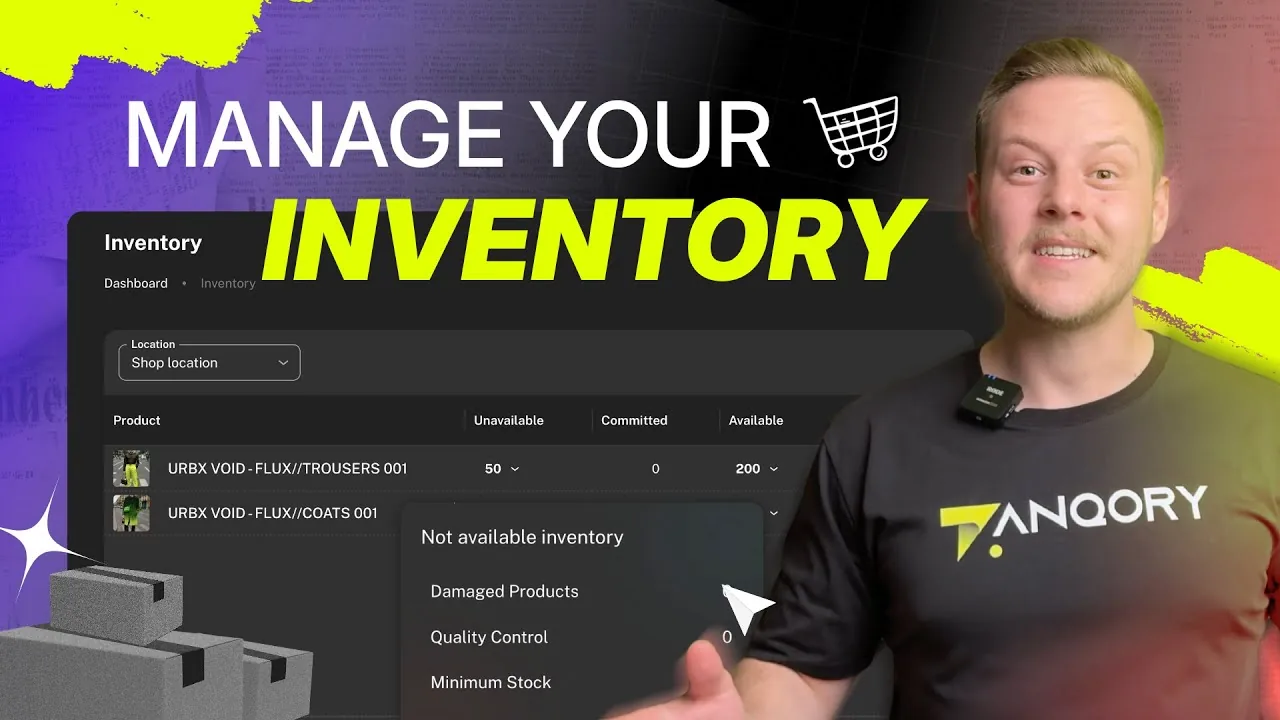 Products · Lesson 3 of 3Inventory Management in Tanqory
Go to Products, then Inventory
Next lesson · Products
Product Collections in Tanqory
Group related products so shoppers find what they came for, and keep your storefront tidy as your catalog grows.