Getting StartedLesson 2 of 6
Setup Guide in Tanqory
Get Ready to Sell (Step-by-Step)
Every task a new store needs before its first sale, gathered into one checklist on your Dashboard. Each button opens the exact settings page you need.
- Video lessonWatch it here or on YouTube
- FreeEvery Tanqory Academy lesson
- No sign-inNothing to register
- In your adminDashboard › Get ready to sell
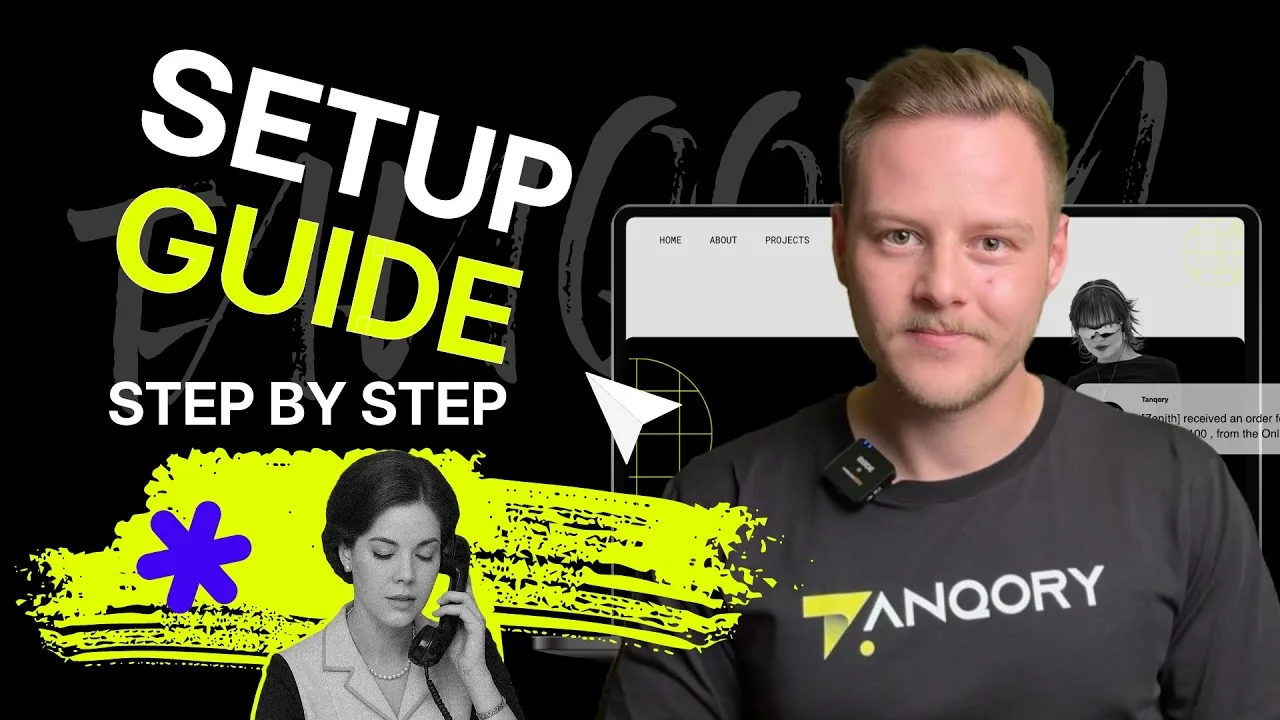
The player loads from YouTube (privacy-enhanced mode) only when you press play.
Watch on YouTube (opens YouTube in a new tab)What you will learn
About this lesson
Every task a new store needs before its first sale, gathered into one checklist on your Dashboard. Each button opens the exact settings page you need.
Where it lives in the admin
- Dashboard
- Get ready to sell
In this lesson (7)
- Find the Get ready to sell section on your Dashboard
- Add your first product with a description, images and pricing
- Connect a custom domain or generate a custom theme for your storefront
- Set your store name
- Set shipping rates for your delivery zones
- Set up payments with a payment provider
- Check the Setup Guide checklist for what is done and what is still open
Or hand the job to Tanqory AI
Ask the assistant in your admin and it answers from the Tanqory Help Center, in the context of your store. One question replaces a search through settings and articles, so a new teammate gets going without waiting for you.
- Acts in your admin only after you confirm
- Everyday AI work uses no AI credits
- Answers how-to questions from the Help Center
What is still open on my setup guide before I can sell?
From the Help Center, the steps are:
- Find the Get ready to sell section on your Dashboard
- Add your first product with a description, images and pricing
- Connect a custom domain or generate a custom theme for your storefront
Nothing changes until you confirm.
Go deeper in the Help Center
Step-by-step articles on the same task, written by the Tanqory team.
- Adding Your First Product
The new product form section by section, what belongs in each field with a worked example to copy the shape of, and what happens when you save: a new product is Active to begin with, so it goes live on your storefront the moment you do.
- Home Dashboard Overview
Home is the landing page you reach after you open a store. It greets you, gives you an AI assistant to ask about your store, and shows setup task cards that walk you through getting ready to sell.
- Connecting Your Domain
The store-setup view of domains: where the Domains page is, the two ways to get a custom domain onto your store, and the detailed articles for each path.
- Setup Guide
How the setup cards on Home work: what a card is made of, how the counts move as you finish tasks, and what the larger marketplace card is for.
More in Getting Started
Getting Started has 6 lessons. Take them in order or jump to the one you need.
 Getting Started · Lesson 1 of 6How to Create a Website in Tanqory
Open the Sites page and click New Site
 Getting Started · Lesson 3 of 6Set Up Your Store Basics with Tanqory
Edit your profile: store name, store image and an optional phone number
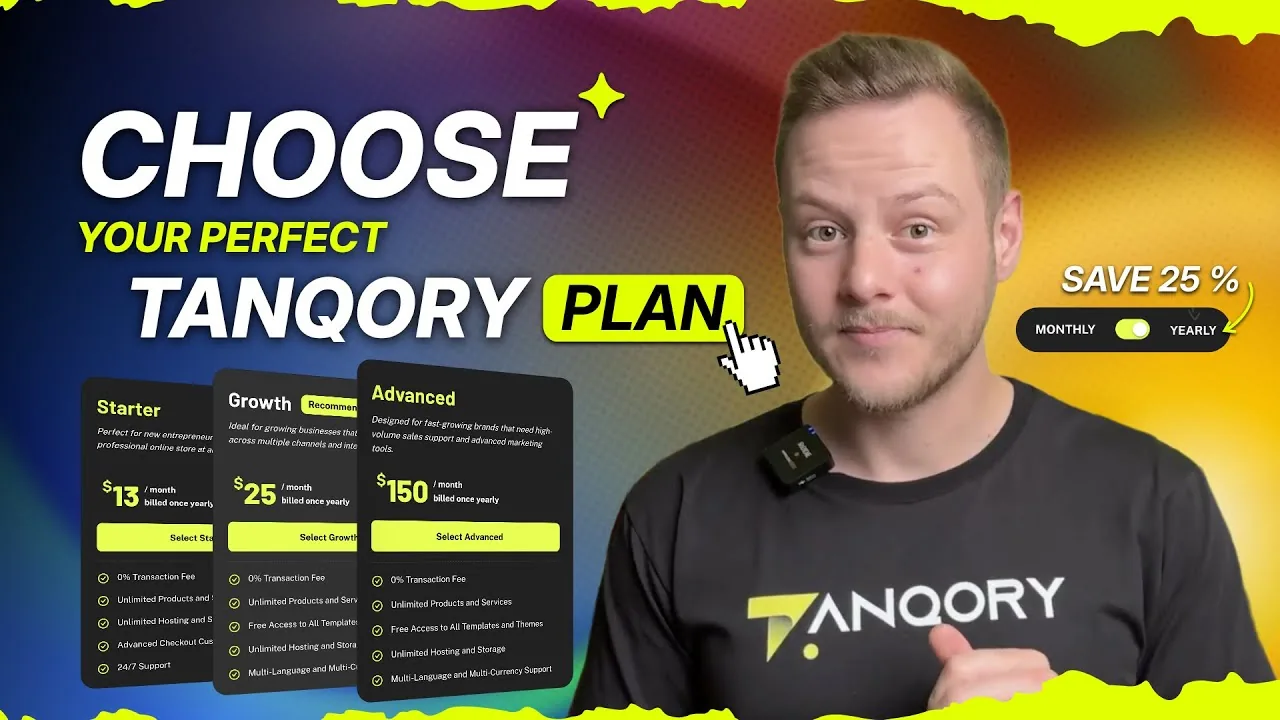 Getting Started · Lesson 4 of 6Choose Your Perfect Tanqory Plan
Compare the Starter, Growth and Advanced plans
Next lesson · Getting Started
Set Up Your Store Basics with Tanqory
The details every order, invoice and report in your store is built on, set once on one page. Get them right on day one and every record stays consistent.