Payments & ShippingLesson 2 of 4
Set Up Shipping and Delivery Options with Tanqory
Decide what customers pay for delivery and where each order ships from. Start simple, then add exceptions as your catalog grows.
- Video lessonWatch it here or on YouTube
- FreeEvery Tanqory Academy lesson
- No sign-inNothing to register
- In your adminSettings › Shipping and delivery
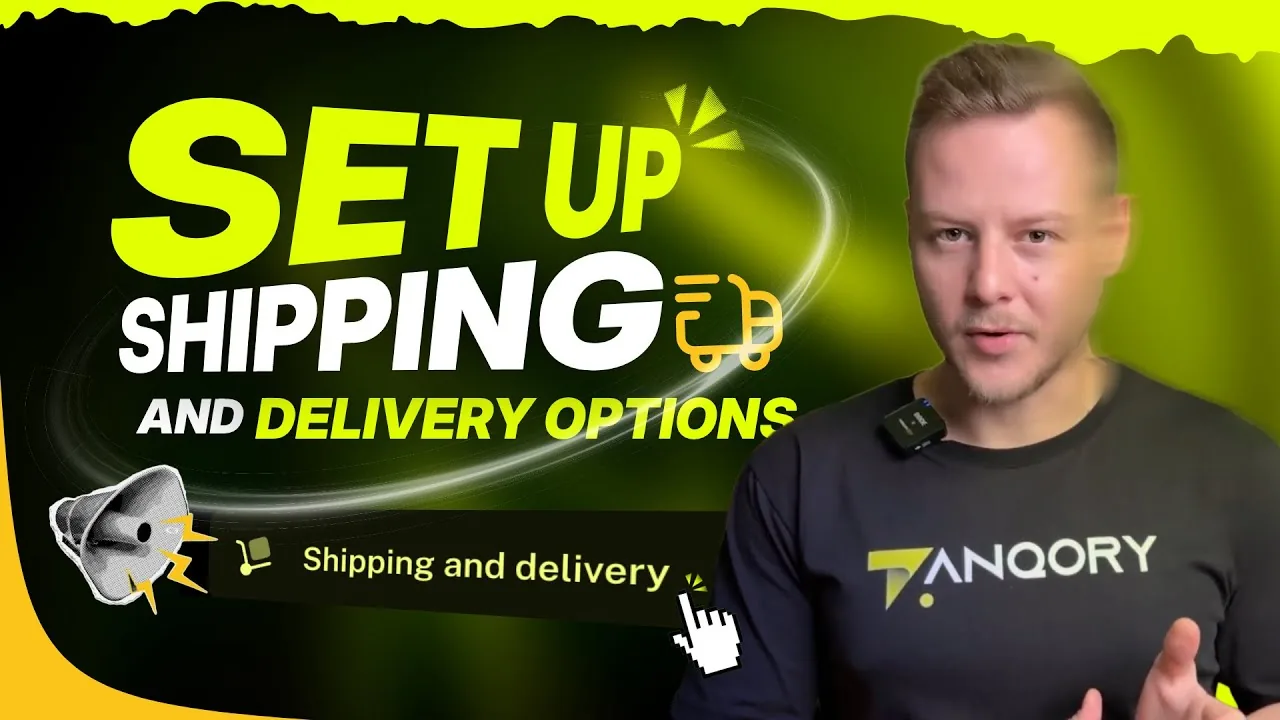
The player loads from YouTube (privacy-enhanced mode) only when you press play.
Watch on YouTube (opens YouTube in a new tab)What you will learn
About this lesson
Decide what customers pay for delivery and where each order ships from. Start simple, then add exceptions as your catalog grows.
Where it lives in the admin
- Settings
- Shipping and delivery
In this lesson (6)
- Open Settings, then Shipping and delivery
- Set the general shipping rate, the default profile for products without a custom one
- Manage the zones and locations each profile covers, with a rate for each
- Create custom shipping rates for products that need their own conditions
- Set order routing rules that assign new orders to a fulfillment location
- Save your changes
Or hand the job to Tanqory AI
Everything this lesson shows, you can also ask for in one sentence. The assistant built into your admin does the steps across products, orders, discounts, markets, settings and more, and waits for your confirmation before it changes anything. Your team spends the time on the business, not on the clicks.
- Acts in your admin only after you confirm
- Everyday AI work uses no AI credits
- Answers how-to questions from the Help Center
Create a free shipping rate for orders to Canada.
Here is what I will do in your admin:
- Open Settings, then Shipping and delivery
- Set the general shipping rate, the default profile for products without a custom one
- Manage the zones and locations each profile covers, with a rate for each
Nothing changes until you confirm.
Go deeper in the Help Center
Step-by-step articles on the same task, written by the Tanqory team.
- Create a Shipping Profile
A custom shipping profile lets you set different shipping rates and rules for specific products, instead of the general rates every other product uses. You give it a name for your own reference, add the products it covers, choose the fulfillment locations, and add shipping zones and rates. Products you do not add to a custom profile keep using the General shipping profile.
- General Shipping Profile
The General profile is the default every product ships under unless you move it to a custom profile. This explains what it holds, its fulfillment locations, shipping zones and rates, and why a zone left without a rate quietly blocks checkout for customers there.
- Custom Order Fulfillment
Recording an outside partner that stores and ships orders for you, so those orders are handed to it instead of leaving your own locations. What you supply to add one, how to manage it afterwards, and what it changes about fulfillment.
- Edit a Shipping Profile
To change a shipping profile, you open it and edit its parts on the profile page, where you can rename a custom profile, change its products, fulfillment locations, and shipping zones and rates. A custom profile can also be deleted from its Actions menu. The General profile is edited the same way but cannot be renamed or deleted.
More in Payments & Shipping
Payments & Shipping has 4 lessons. Take them in order or jump to the one you need.
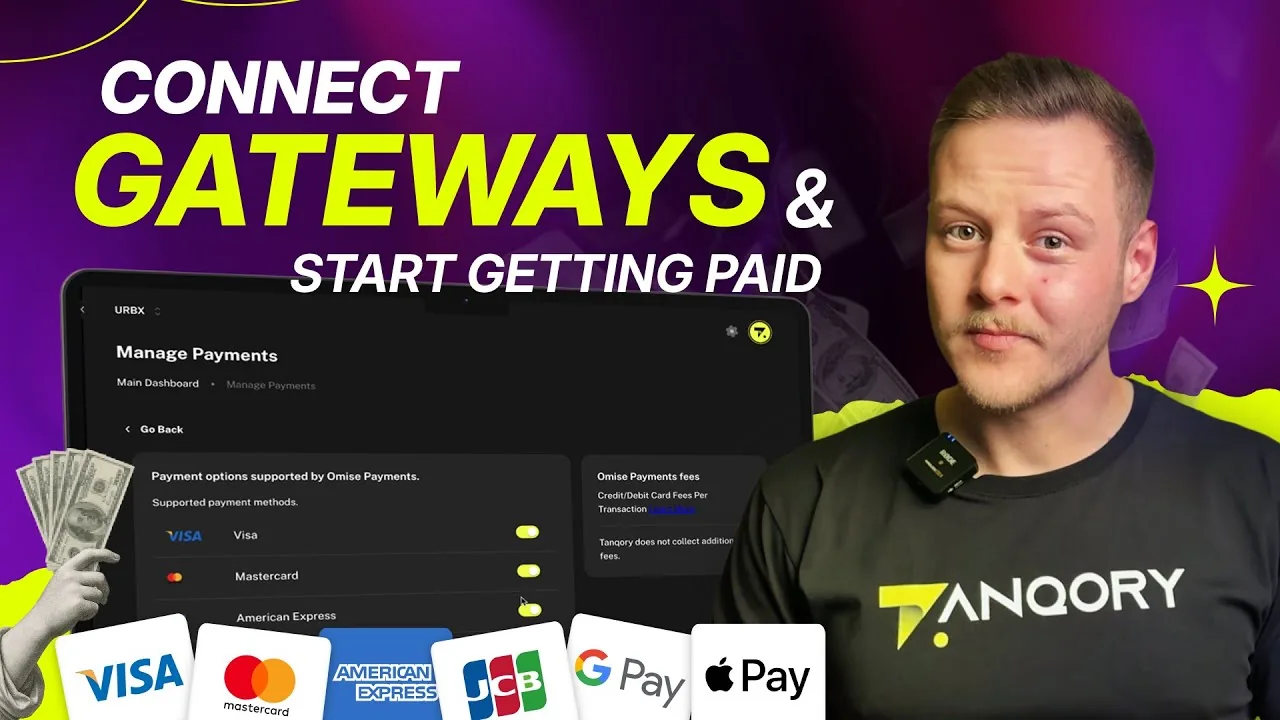 Payments & Shipping · Lesson 1 of 4Connect Payment Gateways & Start Getting Paid Worldwide with Tanqory
Open Settings, then Payments
 Payments & Shipping · Lesson 3 of 4Configure Taxes and Duties in Tanqory
Open Settings, then Taxes & Duties
 Payments & Shipping · Lesson 4 of 4Expand Your Sales Globally with Markets
Open Settings, then Markets, and see your active and inactive markets
Next lesson · Payments & Shipping
Configure Taxes and Duties in Tanqory
Collect the right tax in every country you sell to, shown clearly to shoppers before they pay.