MarketingLesson 1 of 1
Create Discounts with Tanqory
Drive Sales with Smart Promotions
Launch a percentage or fixed amount discount on your own schedule, and switch it on only when you are ready.
- Video lessonWatch it here or on YouTube
- FreeEvery Tanqory Academy lesson
- No sign-inNothing to register
- In your adminDiscounts
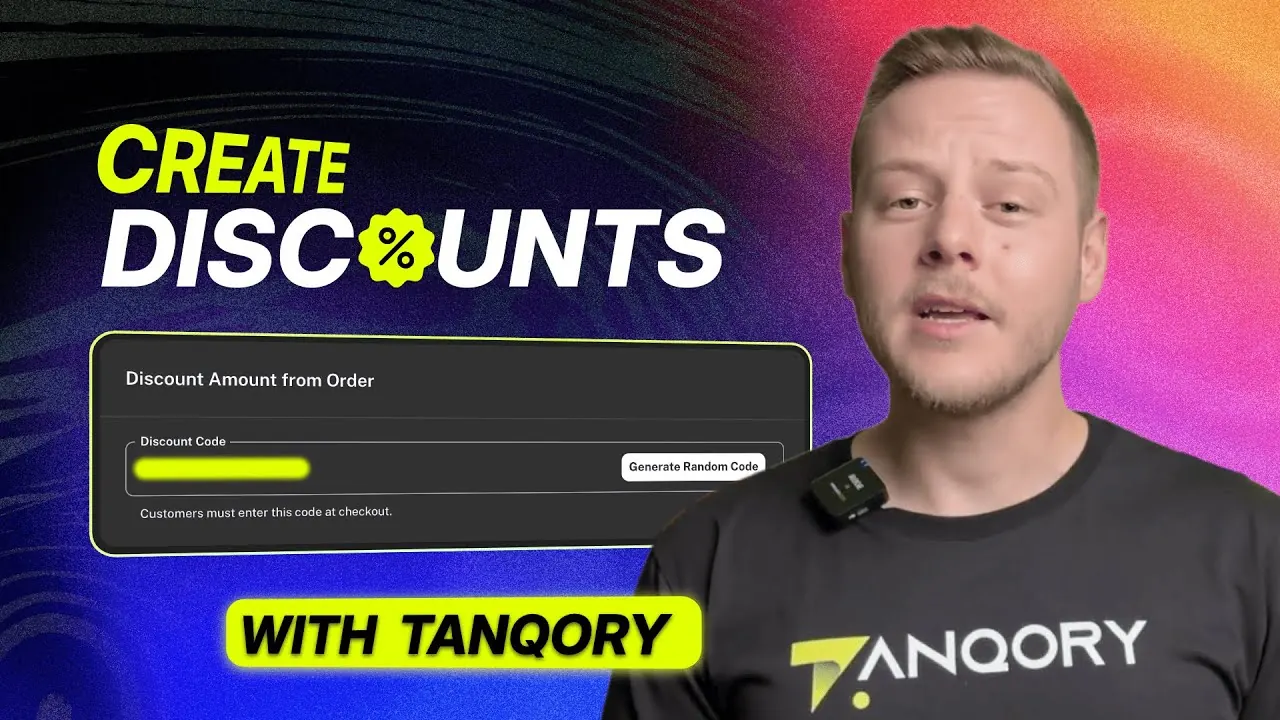
The player loads from YouTube (privacy-enhanced mode) only when you press play.
Watch on YouTube (opens YouTube in a new tab)What you will learn
About this lesson
Run a promotion you can launch fast and control anytime, for flash sales, new product drops and limited-time offers.
Where it lives in the admin
- Discounts
In this lesson (6)
- Open Discounts from the left hand menu
- Click Add new discount
- Choose the value type: a percentage or a fixed amount
- Set the start date and time, and an optional end date
- Keep the discount inactive until launch, or set it to active
- Click Create discount to publish it
Or hand the job to Tanqory AI
Everything this lesson shows, you can also ask for in one sentence. The assistant built into your admin does the steps across products, orders, discounts, markets, settings and more, and waits for your confirmation before it changes anything. Your team spends the time on the business, not on the clicks.
- Acts in your admin only after you confirm
- Everyday AI work uses no AI credits
- Answers how-to questions from the Help Center
Create a 20% discount for the weekend, starting Friday at 9:00.
Here is what I will do in your admin:
- Open Discounts from the left hand menu
- Click Add new discount
- Choose the value type: a percentage or a fixed amount
Nothing changes until you confirm.
Go deeper in the Help Center
Step-by-step articles on the same task, written by the Tanqory team.
- Schedule Discounts
The Active dates section controls the window in which a discount runs. You set a start date and time so the discount begins on its own, and you can turn on Set end date to add an end date and time so it stops on its own. Because the start and end drive the discount status, scheduling lets you plan a sale in advance and be sure it does not run longer than you intend.
- Create a Discount Code
A discount code is a code customers enter at checkout to get a discount. You create one from the Discounts page by choosing a discount type, setting the method to Discount code, and entering the code and its value.
- Free Shipping Discounts
A free shipping discount removes the shipping charge at checkout, either when a customer enters a code or automatically once their order qualifies. You create it like any other discount and choose Free shipping as the type, then set which countries the offer covers and, if you want, exclude shipping rates over a certain amount so very expensive options are not given away for free. To encourage larger orders, add a minimum purchase amount under purchase requirements, so customers get free shipping once their order reaches a set amount.
- Discount Types
Tanqory has four discount types, chosen when you create a discount: Amount off products, Buy X get Y, Amount off order, and Free shipping. The type decides what the discount reduces, while the value and whether it uses a code are set on the form afterward.
More in Content & Media
Marketing is a single lesson. Content & Media comes next in the catalog.
 Content & Media · Lesson 1 of 2Upload and Manage Your Media Files in Tanqory
Open Contents, then Files, to see every asset you have uploaded
 Content & Media · Lesson 2 of 2Write a Professional Blog Post with Tanqory
Go to Online store, then Blog posts, and click Add post
Next lesson · Content & Media
Upload and Manage Your Media Files in Tanqory
Keep your images, logos and brand assets in one library, ready to reuse anywhere in your store.