OrdersLesson 1 of 3
Managing Orders Professionally in Tanqory
Orders, Fulfillment, Tracking, Returns & Refunds
Run every order from the moment it is paid to the day it ships, and handle the ones that come back.
- Video lessonWatch it here or on YouTube
- FreeEvery Tanqory Academy lesson
- No sign-inNothing to register
- In your adminOrders
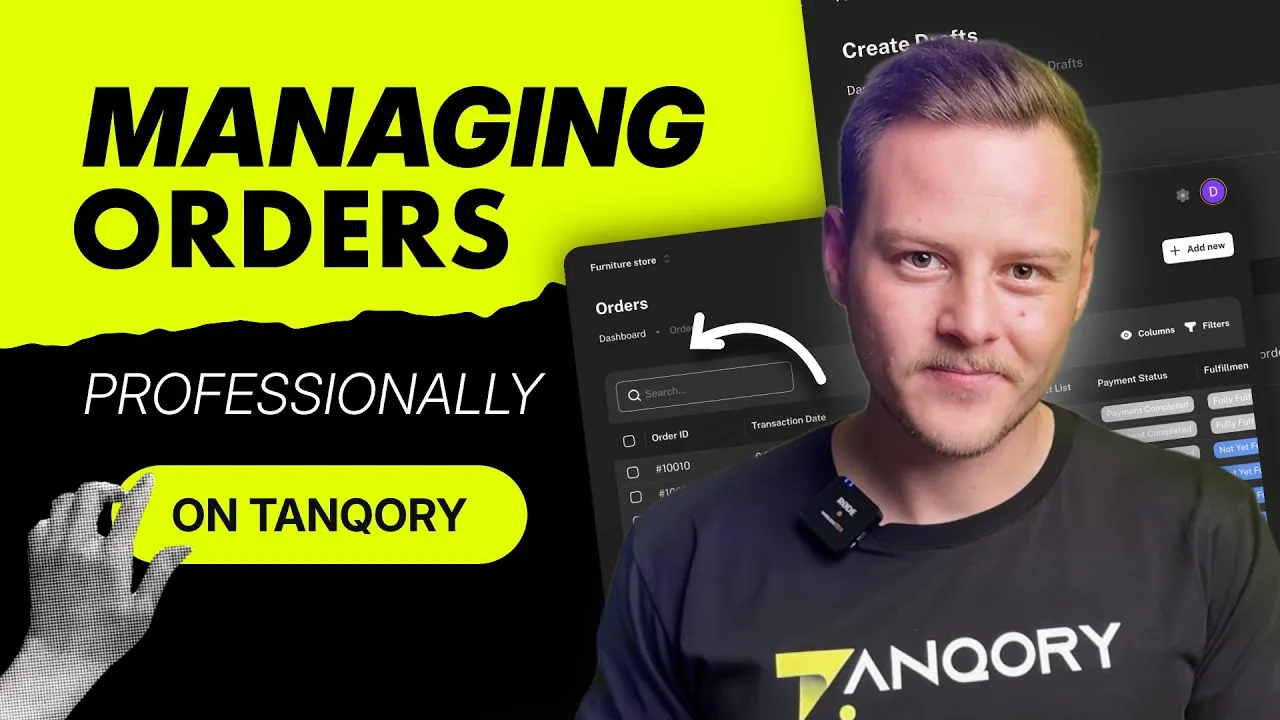
The player loads from YouTube (privacy-enhanced mode) only when you press play.
Watch on YouTube (opens YouTube in a new tab)What you will learn
About this lesson
Run every order from start to finish with confidence: from the moment it comes in, through shipping, to a return or refund if it comes back.
Where it lives in the admin
- Orders
In this lesson (8)
- Read the Orders table: order ID, transaction date, customer, items and total
- Payment status, fulfillment status and delivery status explained
- Open any order from its order ID
- Fulfill an order and add tracking with the shipping provider and tracking number
- Notify the customer with shipping updates
- Refund items or an amount, with a reason
- Return items, with stock updated automatically
- Edit an order or cancel it, refunding now or later
Or hand the job to Tanqory AI
Everything this lesson shows, you can also ask for in one sentence. The assistant built into your admin does the steps across products, orders, discounts, markets, settings and more, and waits for your confirmation before it changes anything. Your team spends the time on the business, not on the clicks.
- Acts in your admin only after you confirm
- Everyday AI work uses no AI credits
- Answers how-to questions from the Help Center
Fulfill order 1187, add the tracking number and notify the customer.
Here is what I will do in your admin:
- Read the Orders table: order ID, transaction date, customer, items and total
- Payment status, fulfillment status and delivery status explained
- Open any order from its order ID
Nothing changes until you confirm.
Go deeper in the Help Center
Step-by-step articles on the same task, written by the Tanqory team.
- Cancel an Order
Canceling an order stops it before it ships and, if it has been paid, refunds the customer. In the Cancel order window you choose whether to refund now or later, pick a reason, add a staff note, and decide whether to restock the items and email the customer. Canceling cannot be undone, so the window asks you to confirm. This article walks through the Cancel order window.
- Refund an Order
Refunding an order returns money to the customer for the items you choose. On the Refund page you pick how many of each item to refund, write a reason for your own records, and set the refund method and the amount, up to the amount still available. Refunded items are removed from the order, and the refund is recorded on it. To change prices or quantities instead of returning money, edit the order rather than refunding it.
- Add a Tracking Number
If you ship an order yourself or through a carrier outside Tanqory, you can add the tracking number so the customer can follow their parcel. The Add tracking window lets you enter the tracking number and the shipping carrier, add more than one number when the order ships in several parcels, and choose whether to email the customer the tracking details. This article walks through adding tracking to a fulfilled order.
- Order Payment Section
The payment card on an order reconciles what the customer owed against what they actually paid, showing the Subtotal, Tax, Total, the amount Paid, and the Net payment, along with the payment status and the Refund action.
More in Orders
Orders has 3 lessons. Take them in order or jump to the one you need.
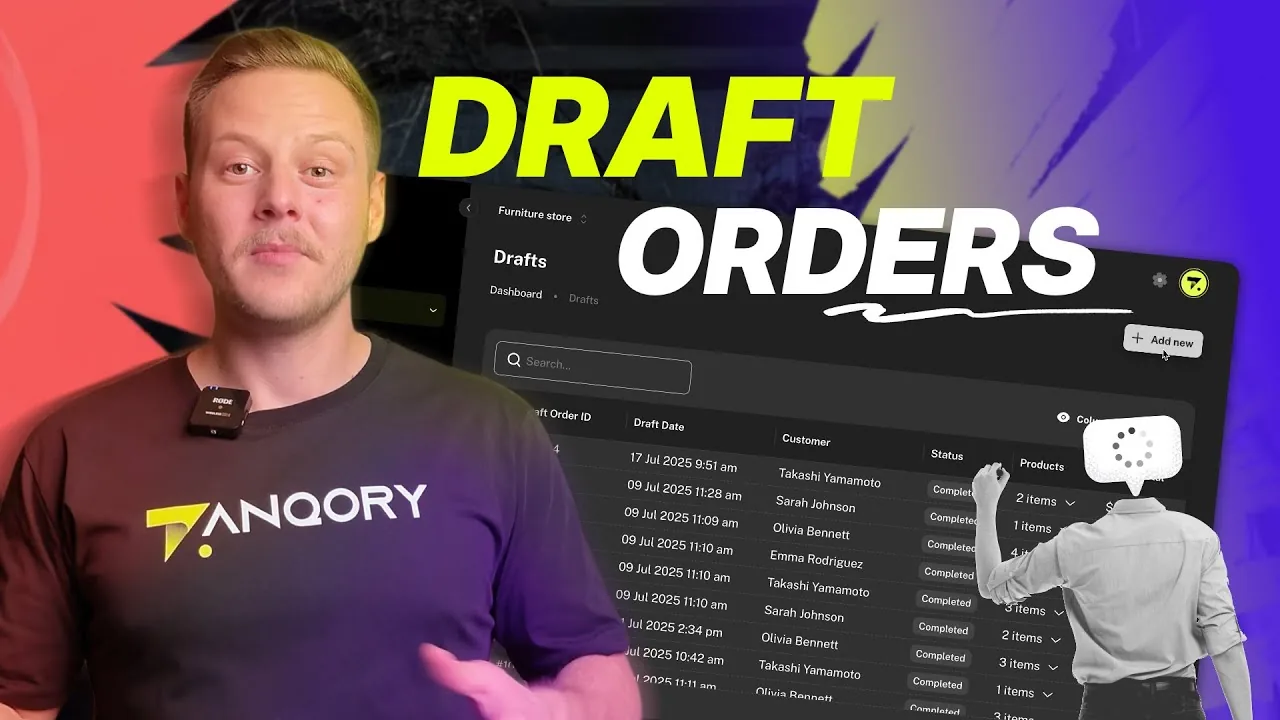 Orders · Lesson 2 of 3Draft Orders in Tanqory
Go to Orders, then Draft, to see every draft with its ID, date, customer, status, item count and total
 Orders · Lesson 3 of 3Manage Store Locations and Fulfillment Points with Tanqory
Access and manage Locations in Tanqory
Next lesson · Orders
Draft Orders in Tanqory
Take an order by phone or chat and check every detail before it becomes final. Built for custom requests and sales your team closes by hand.