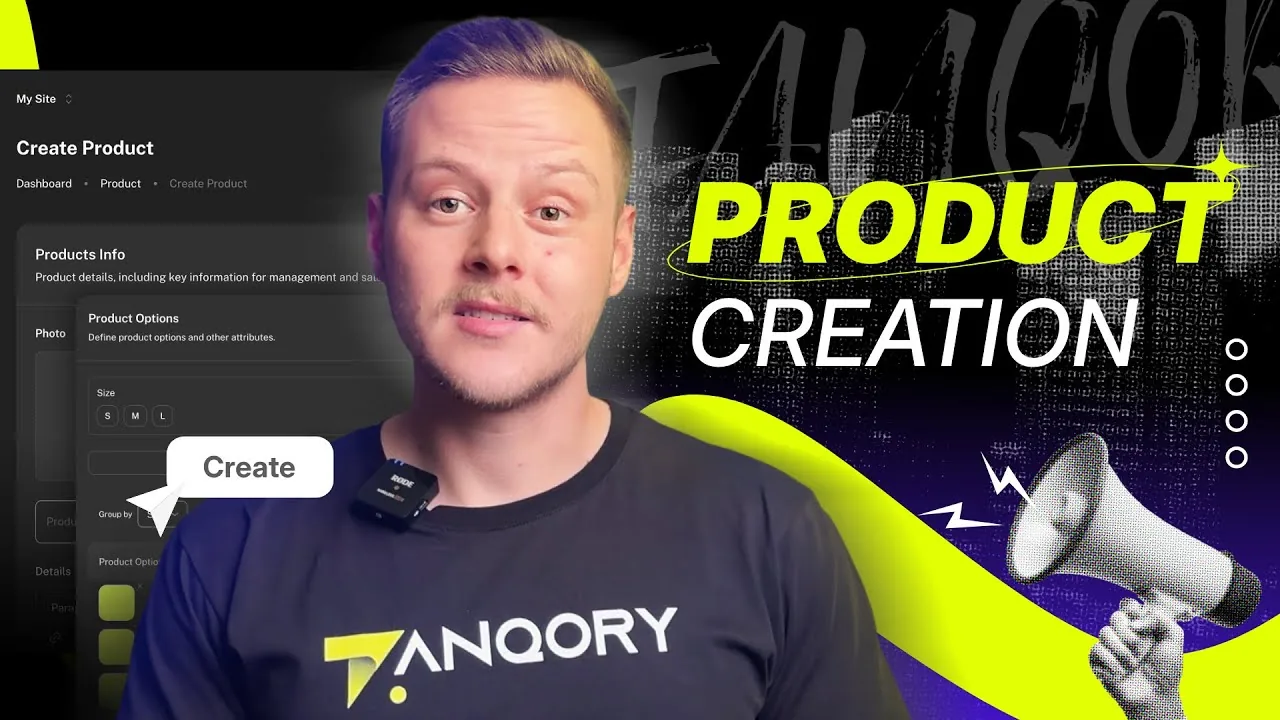
Learning pathPath 1 of 6
Getting Started
Six video lessons from an empty account to launch day: your website, the setup guide, store basics, your plan, billing and launch settings.
- 6 video lessonsWatch them here or on YouTube
- FreeEvery Tanqory Academy lesson
- No sign-inNothing to register
- In your adminSites, Dashboard, Settings, Plan, Online store
The lessons, in order
Take them in order or start with the one you need. Each lesson page has the video with its steps written out beside it.
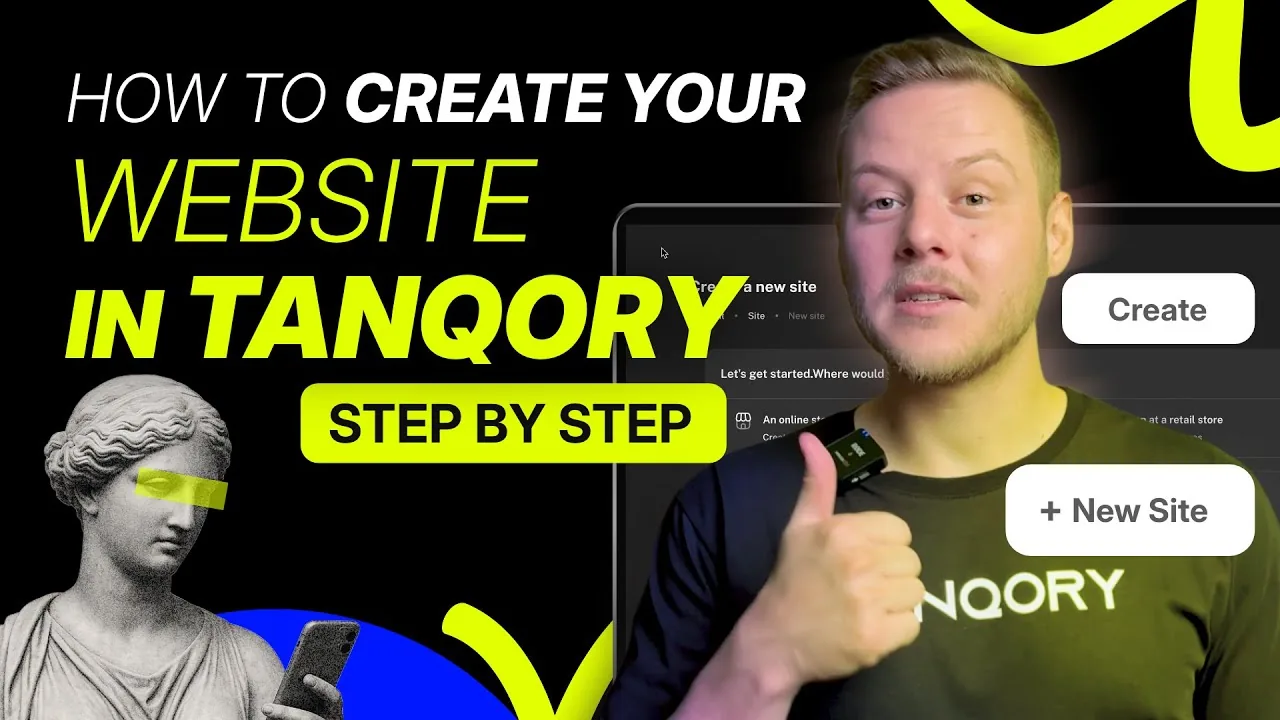 Lesson 1 of 6How to Create a Website in Tanqory
Open the Sites page and click New Site
 Lesson 2 of 6Setup Guide in Tanqory
Find the Get ready to sell section on your Dashboard
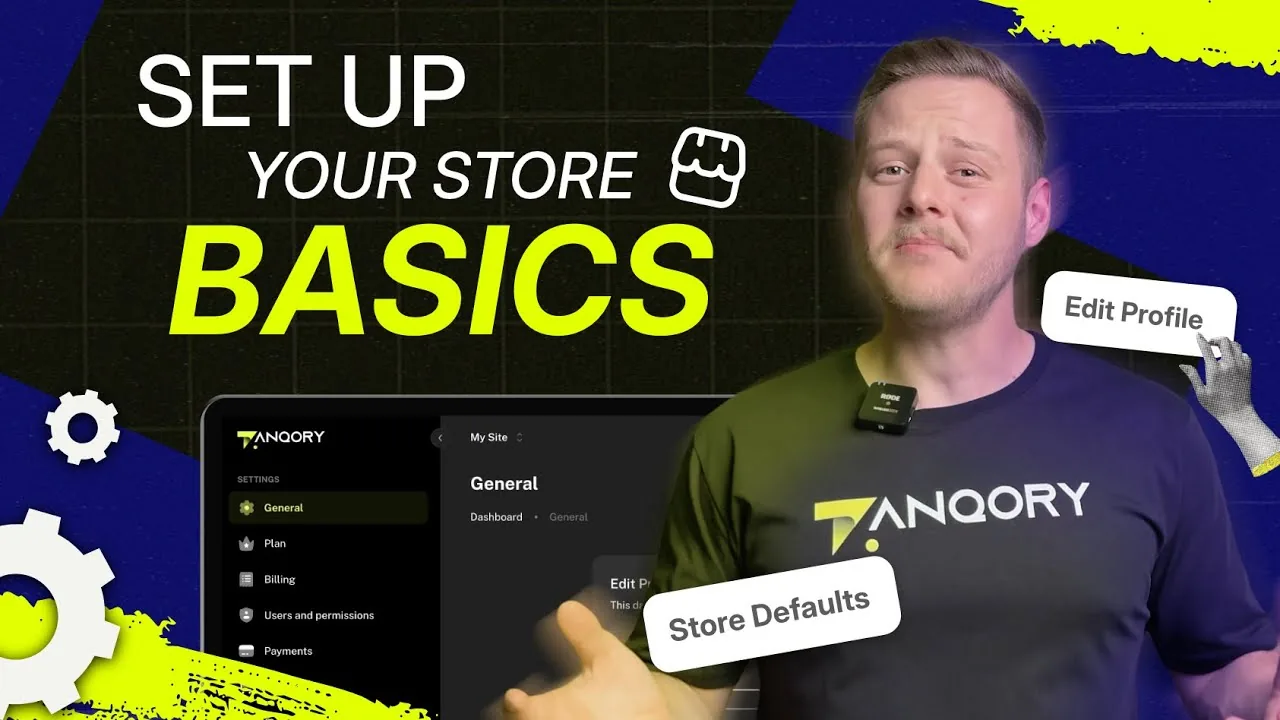 Lesson 3 of 6Set Up Your Store Basics with Tanqory
Edit your profile: store name, store image and an optional phone number
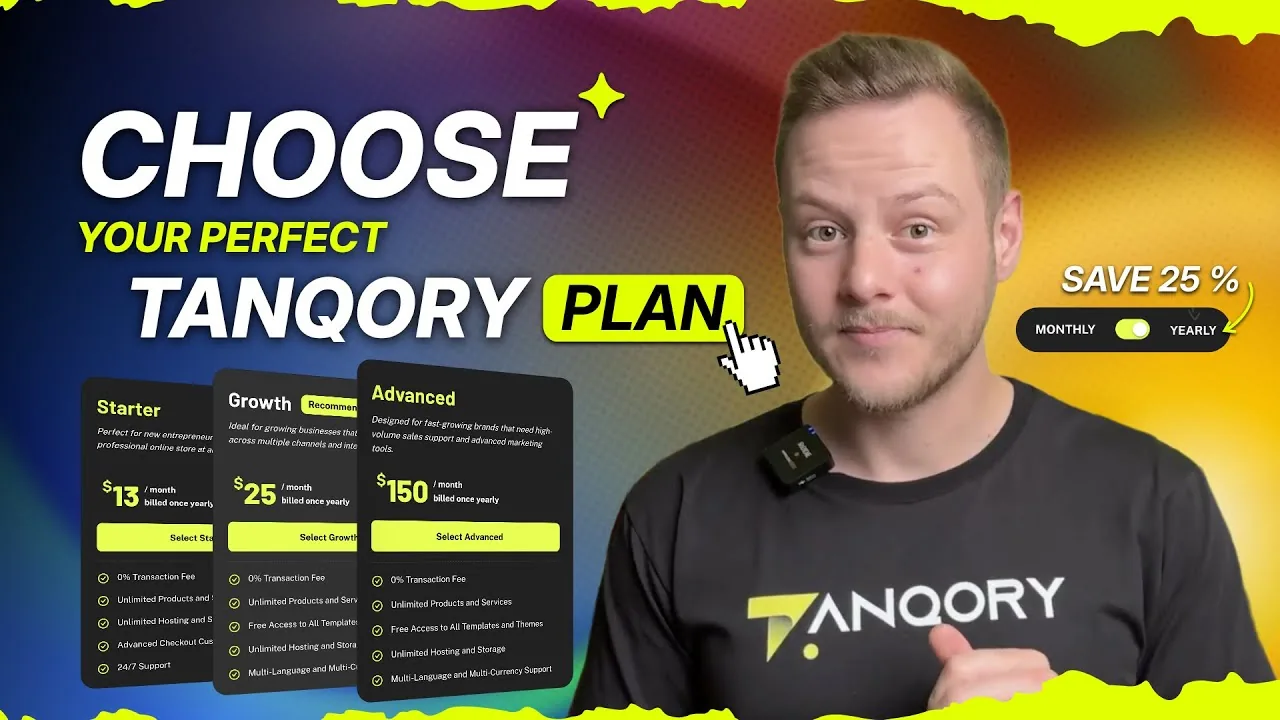 Lesson 4 of 6Choose Your Perfect Tanqory Plan
Compare the Starter, Growth and Advanced plans
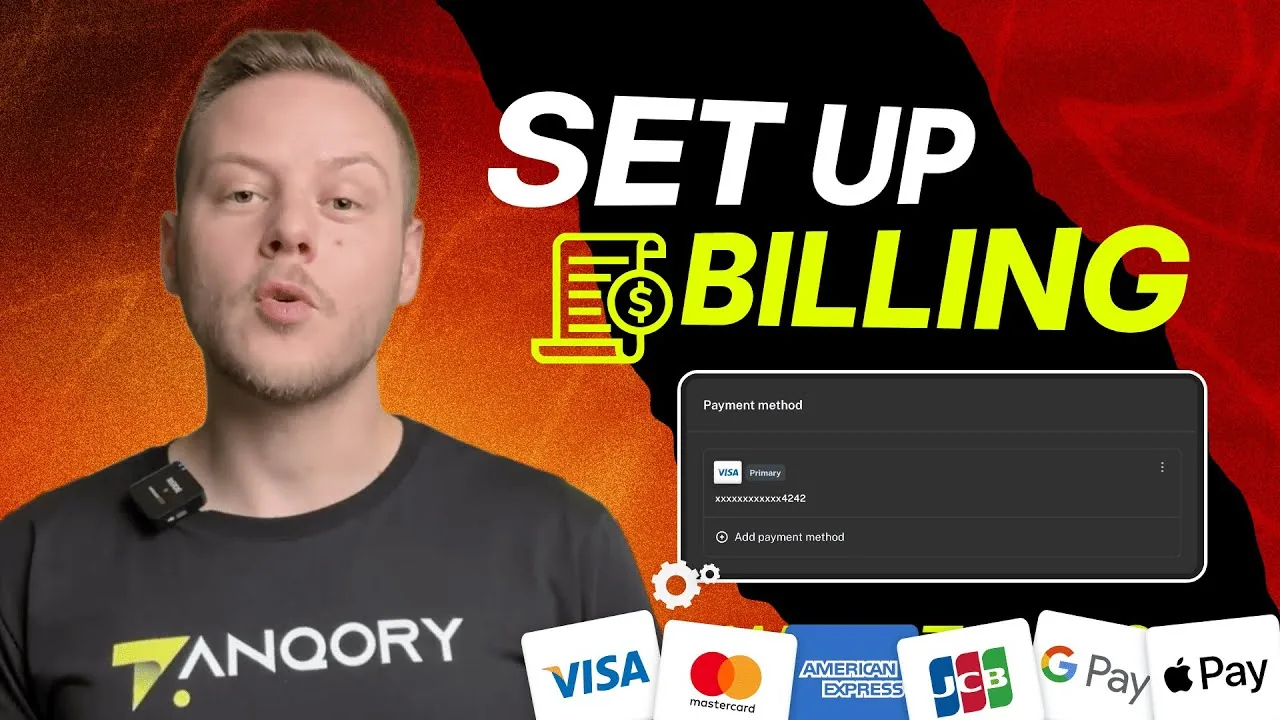 Lesson 5 of 6Set Up Billing with Tanqory
Open Settings and go to Billing
 Lesson 6 of 6Launch Like a Pro
Open Online store and go to Preferences
Or describe your store and let AI build it
Describe what you sell and Tanqory AI builds a store ready to sell: brand, theme, pages and products. You review it and change what you like, so launch day comes from one sentence instead of a week of setup.
- Acts in your admin only after you confirm
- Everyday AI work uses no AI credits
- Answers how-to questions from the Help Center
Build a store for my handmade ceramics: brand, theme, pages and the first products.
I will draft your store:
- Open the Sites page and click New Site
- Choose where you want to sell, such as an online store or social media
- Say whether you are just starting or already selling
Nothing changes until you confirm.
Go deeper in the Help Center
Step-by-step articles on the same tasks, written by the Tanqory team.
- Create and Edit Pages
Pages hold standalone content on your online store, such as an About us page or your store policies, separate from your products and collections. You create one from the Pages area, give it a title and content in a rich text editor, and set its web address, visibility, and theme template. This article walks through the page editor and how to create and edit a page.
- Adding Your First Product
The new product form section by section, what belongs in each field with a worked example to copy the shape of, and what happens when you save: a new product is Active to begin with, so it goes live on your storefront the moment you do.
- Store Information Settings
The Settings General page, where you set your store's name and contact details, its defaults for currency, units, and timezone, your order number format, and how orders are processed.
- Compare Plans
The Compare plans page lays the five Tanqory plans side by side, with monthly or annual pricing, team-member and location limits, transaction fees, and included features. It also has tabs to buy AI Credits, top up a Shipping Balance, and migrate your store to a managed cloud.
Next path · 3 lessons
Products and Inventory
Three video lessons on your catalog: create a product with variants and prices, group products into collections, and keep your stock counts right.