Store SettingsLesson 3 of 3
Manage Users and Permissions in Tanqory
Build and Control Your Team
Give every teammate the access their job needs and nothing more, so sensitive settings stay safe from accidental changes.
- Video lessonWatch it here or on YouTube
- FreeEvery Tanqory Academy lesson
- No sign-inNothing to register
- In your adminSettings › Users and Permissions
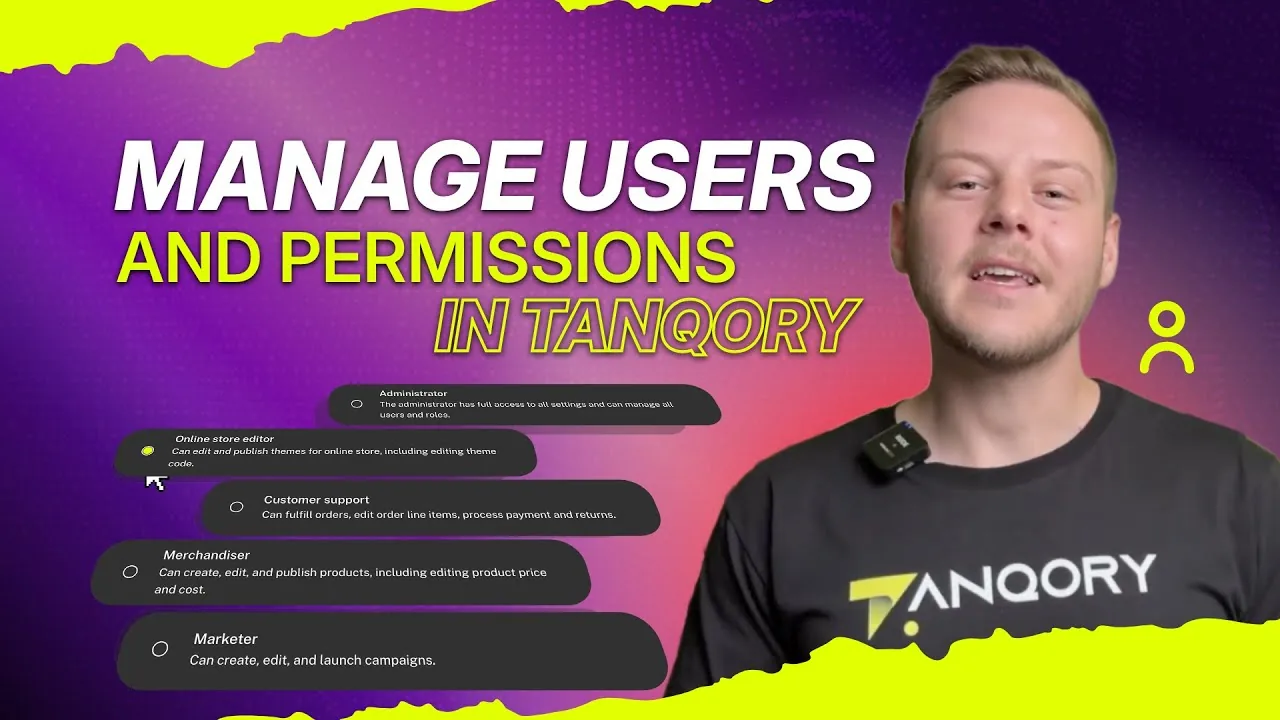
The player loads from YouTube (privacy-enhanced mode) only when you press play.
Watch on YouTube (opens YouTube in a new tab)What you will learn
About this lesson
Give every teammate the access their job needs and nothing more, so sensitive settings stay safe from accidental changes.
Where it lives in the admin
- Settings
- Users and Permissions
In this lesson (5)
- Open Settings, then Users and Permissions, to see each teammate with their status and role
- Click Add users and enter the email address of the person you want to invite
- Choose a role: Administrator, Online store editor, Customer support, Merchandiser or Marketer
- Click Send invite so they can accept by email and join your workspace
- Change a role or suspend access at any time
Or hand the job to Tanqory AI
Everything this lesson shows, you can also ask for in one sentence. The assistant built into your admin does the steps across products, orders, discounts, markets, settings and more, and waits for your confirmation before it changes anything. Your team spends the time on the business, not on the clicks.
- Acts in your admin only after you confirm
- Everyday AI work uses no AI credits
- Answers how-to questions from the Help Center
Invite a teammate who can manage orders and nothing else.
Here is what I will do in your admin:
- Open Settings, then Users and Permissions, to see each teammate with their status and role
- Click Add users and enter the email address of the person you want to invite
- Choose a role: Administrator, Online store editor, Customer support, Merchandiser or Marketer
Nothing changes until you confirm.
Go deeper in the Help Center
Step-by-step articles on the same task, written by the Tanqory team.
- Users
The Users page is where you manage the people who can access your store admin. You see each team member's status and role, add new users, filter by All, Active, Pending, or Requests, and export the list.
- Manage Users
Everyone with access to your store sits on one list, sorted into tabs by the state they are in. This covers reading those states, opening a person to change their roles or their sign-in requirement, and the difference between suspending someone and removing them.
- Invite Team Members
An invitation gives someone their own login to your store instead of a copy of yours. The form asks three things: who it goes to, whether they must add a second sign-in step, and which roles they get. After you send it, the invitation sits on the Pending tab until they accept it or it expires.
- Manage Your Team
Access granted once tends to stay granted. This is the upkeep pass: reading the Active tab as a question, clearing invitations nobody accepted, moving roles when someone changes job, and closing access when they leave.
More in Store Settings
Store Settings has 3 lessons. Take them in order or jump to the one you need.
 Store Settings · Lesson 1 of 3Connect or Buy a Domain Easily with Tanqory
Open Settings, then Domains
 Store Settings · Lesson 2 of 3Set Clear and Professional Store Policies in Tanqory
Open Settings, then Policies
Next lesson · Marketing
Create Discounts with Tanqory
Launch a percentage or fixed amount discount on your own schedule, and switch it on only when you are ready.