OrdersLesson 2 of 3
Draft Orders in Tanqory
Create Orders for Customers
Take an order by phone or chat and check every detail before it becomes final. Built for custom requests and sales your team closes by hand.
- Video lessonWatch it here or on YouTube
- FreeEvery Tanqory Academy lesson
- No sign-inNothing to register
- In your adminOrders › Draft
The player loads from YouTube (privacy-enhanced mode) only when you press play.
Watch on YouTube (opens YouTube in a new tab)What you will learn
About this lesson
Take an order by phone or chat and check every detail before it becomes final. Built for custom requests and sales your team closes by hand.
Where it lives in the admin
- Orders
- Draft
In this lesson (6)
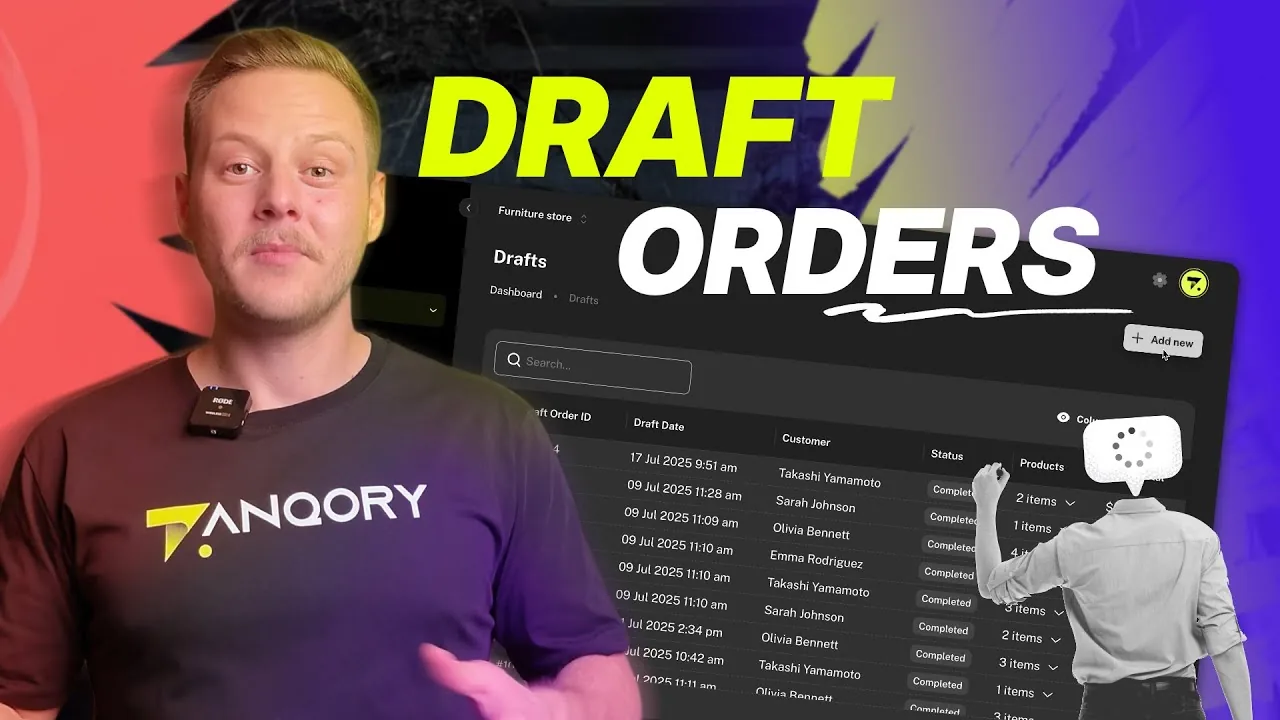
- Go to Orders, then Draft, to see every draft with its ID, date, customer, status, item count and total
- Click Add new and add the products your customer wants
- Choose a market for location based pricing
- Select a customer profile or create one
- Add payment details, tax, shipping and internal notes
- Click Create to save the draft, then edit it later or convert it into a finalized order
Or hand the job to Tanqory AI
Everything this lesson shows, you can also ask for in one sentence. The assistant built into your admin does the steps across products, orders, discounts, markets, settings and more, and waits for your confirmation before it changes anything. Your team spends the time on the business, not on the clicks.
- Acts in your admin only after you confirm
- Everyday AI work uses no AI credits
- Answers how-to questions from the Help Center
Draft an order for a returning customer: two mugs, shipped to Singapore.
Here is what I will do in your admin:
- Go to Orders, then Draft, to see every draft with its ID, date, customer, status, item count and total
- Click Add new and add the products your customer wants
- Choose a market for location based pricing
Nothing changes until you confirm.
Go deeper in the Help Center
Step-by-step articles on the same task, written by the Tanqory team.
- Create Draft Order
Create an order yourself for a phone, email, or in-person sale, then send an invoice, mark it paid, or save it as a draft.
- Add Order Notes
An order has two places for staff-only notes, and this article shows you how to use each. The Notes card at the top of the right column holds one standing note that stays in view, and the note box in the Timeline posts dated comments that build into a history. Neither is shown to the customer. This article walks through adding a standing note and posting a dated comment, and points to the concept article for how the two differ.
- Ways to Complete a Draft Order
Once you have added the products to a draft order, the Payment section gives you a few ways to finish it, and this article explains each. You can save it as a draft to come back to, email the customer an invoice to pay, mark it as already paid, or set payment terms so it is paid later. This article covers those choices and points you to the full draft order form for building the order itself.
- Order Payment Section
The payment card on an order reconciles what the customer owed against what they actually paid, showing the Subtotal, Tax, Total, the amount Paid, and the Net payment, along with the payment status and the Refund action.
More in Orders
Orders has 3 lessons. Take them in order or jump to the one you need.
 Orders · Lesson 1 of 3Managing Orders Professionally in Tanqory
Read the Orders table: order ID, transaction date, customer, items and total
 Orders · Lesson 3 of 3Manage Store Locations and Fulfillment Points with Tanqory
Access and manage Locations in Tanqory
Next lesson · Orders
Manage Store Locations and Fulfillment Points with Tanqory
Tell Tanqory where your stock sits and where orders ship from. With that set, stock is allocated and orders are routed for faster delivery.