ProductsLesson 3 of 3
Inventory Management in Tanqory
Track Available, Committed, and Unavailable Stock by Location
See what you have in stock at each location at a glance, and change a count with a recorded reason whenever it moves.
- Video lessonWatch it here or on YouTube
- FreeEvery Tanqory Academy lesson
- No sign-inNothing to register
- In your adminProducts › Inventory
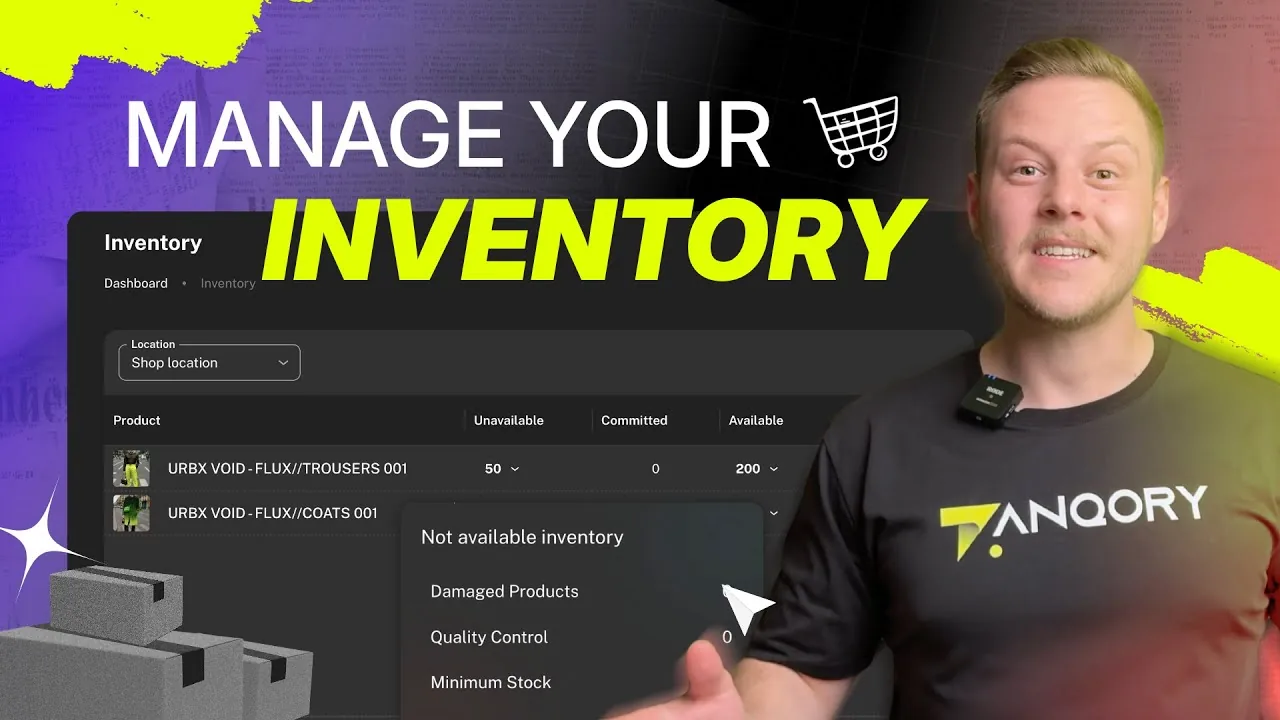
The player loads from YouTube (privacy-enhanced mode) only when you press play.
Watch on YouTube (opens YouTube in a new tab)What you will learn
About this lesson
Know what you have in stock and where it is, and keep a reason behind each change to your counts.
Where it lives in the admin
- Products
- Inventory
In this lesson (6)
- Go to Products, then Inventory
- How Tanqory categorizes stock
- Available: ready to sell
- Committed: reserved for confirmed orders pending shipment
- Unavailable: held for reasons such as damage or quality checks
- In Stock: total across all inventory
- Filter inventory by location
- Click an Available or Unavailable count to change it
- Pick a reason, such as damaged, quality control or minimum stock
- Adjust by a quantity or set a new total, then save
Or hand the job to Tanqory AI
Everything this lesson shows, you can also ask for in one sentence. The assistant built into your admin does the steps across products, orders, discounts, markets, settings and more, and waits for your confirmation before it changes anything. Your team spends the time on the business, not on the clicks.
- Acts in your admin only after you confirm
- Everyday AI work uses no AI credits
- Answers how-to questions from the Help Center
Which products are under five units at the Rotterdam warehouse?
Here is what I will do in your admin:
- Go to Products, then Inventory
- How Tanqory categorizes stock
- Filter inventory by location
Nothing changes until you confirm.
Go deeper in the Help Center
Step-by-step articles on the same task, written by the Tanqory team.
- Multi-Location Inventory
Locations are the places your stock can be, and every quantity in the store belongs to one of them. Adding one, moving the default, retiring a location you no longer use, and what each of those changes elsewhere in inventory.
- Inventory by Location
Where a product is stocked, not just how much of it you hold. The product page shows every location side by side, the Inventory list shows one location at a time depending on the selector at the top, and reading the wrong one is how stock gets promised from a city that does not have it.
- Track Quantity
The switch that decides whether a product has a stock count at all. What appears when you turn it on, why the storefront sells against Available rather than On hand, and why the starting figure has to be the real one.
- Inventory
The Inventory page is where you track stock across every product and location. See what is available, committed, incoming, and on hand, and turn tracking on per product.
More in Products
Products has 3 lessons. Take them in order or jump to the one you need.
 Products · Lesson 1 of 3Product Creation in Tanqory
Go to Products, then Products, and click Add new
 Products · Lesson 2 of 3Product Collections in Tanqory
Go to Products, then Collections, and click Add new collection
Next lesson · Payments & Shipping
Connect Payment Gateways & Start Getting Paid Worldwide with Tanqory
Link a payment gateway and start accepting cards, e-wallets and bank transfers from customers around the world.