Tanqory AcademyTopic 1 of 7
Getting Started
Six video lessons for a new store: create your website, work through the setup guide, set your store basics, choose a plan, set up billing and launch.
- 6 video lessonsWatch them here or on YouTube
- Learning path
- FreeEvery Tanqory Academy lesson
- No sign-inNothing to register
The lessons on this topic
Each lesson page has the video with its steps written out beside it. Pick another topic, or search every lesson.
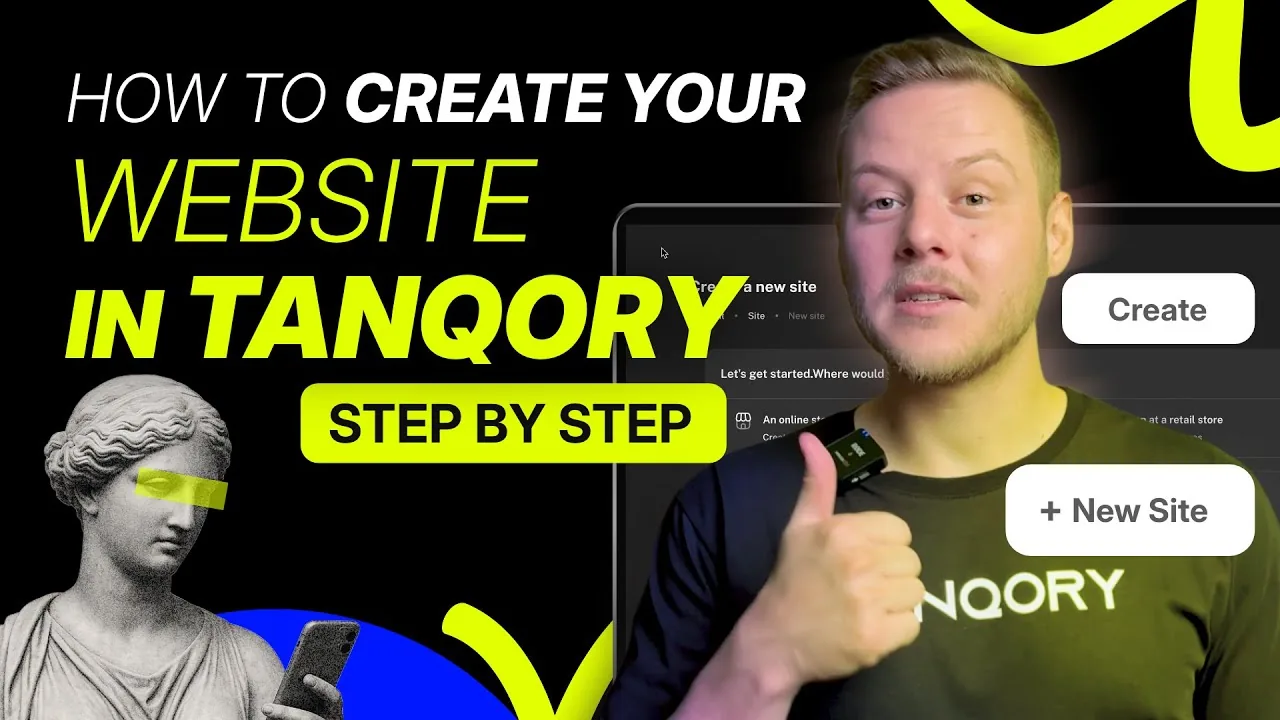 Getting Started · Lesson 1 of 6How to Create a Website in Tanqory
Go from no store at all to your own ecommerce website, ready for your first products. A few short questions about your business shape the site Tanqory sets up for you.
Free · 7 steps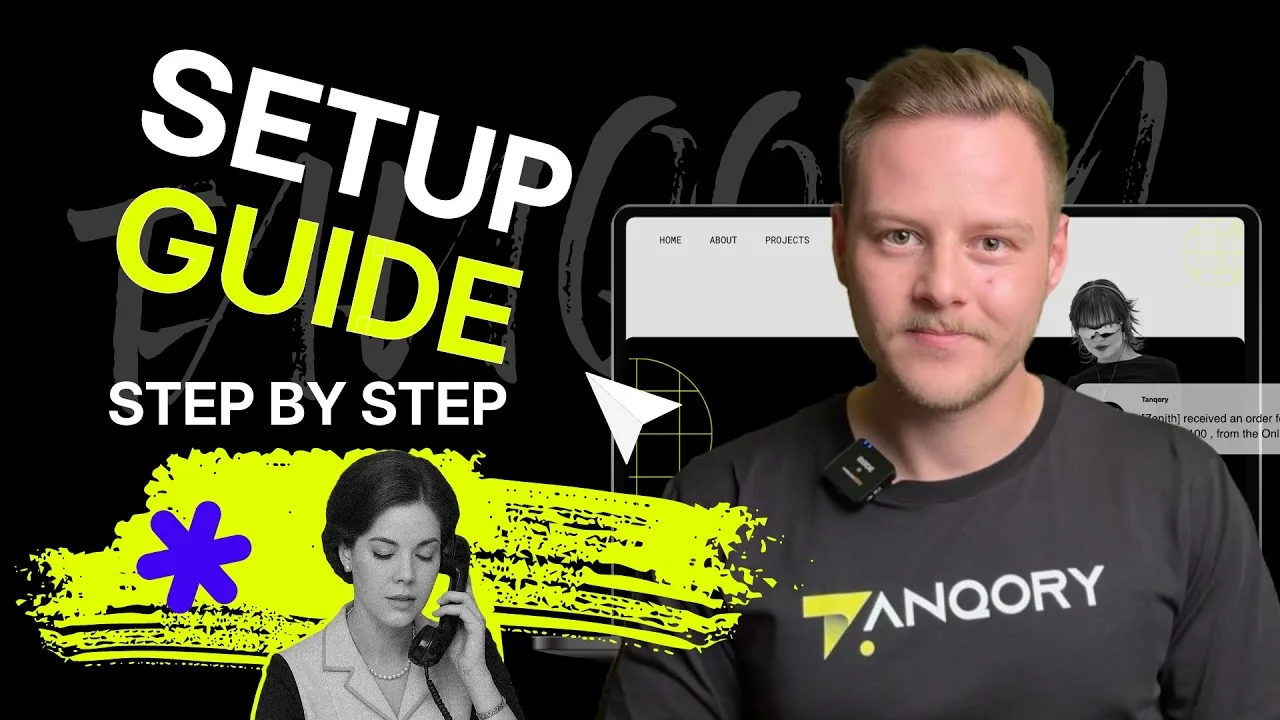 Getting Started · Lesson 2 of 6Setup Guide in Tanqory
Every task a new store needs before its first sale, gathered into one checklist on your Dashboard. Each button opens the exact settings page you need.
Free · 7 steps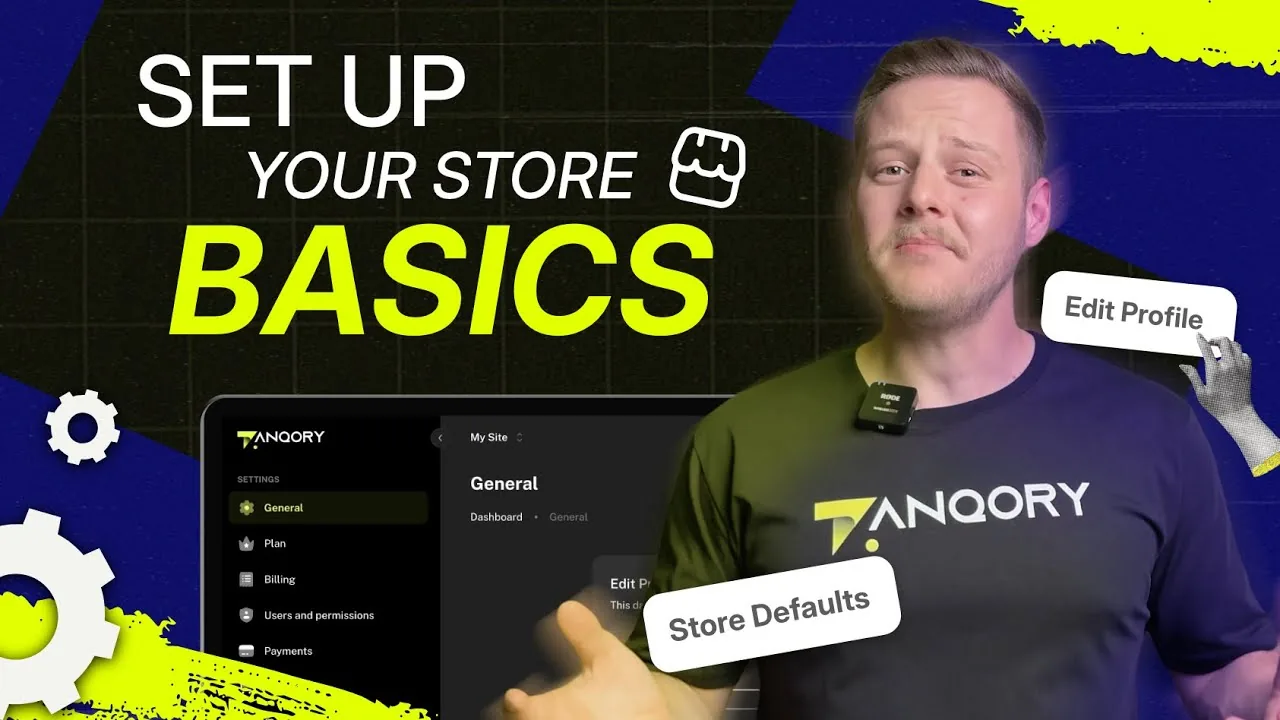 Getting Started · Lesson 3 of 6Set Up Your Store Basics with Tanqory
The details every order, invoice and report in your store is built on, set once on one page. Get them right on day one and every record stays consistent.
Free · 4 steps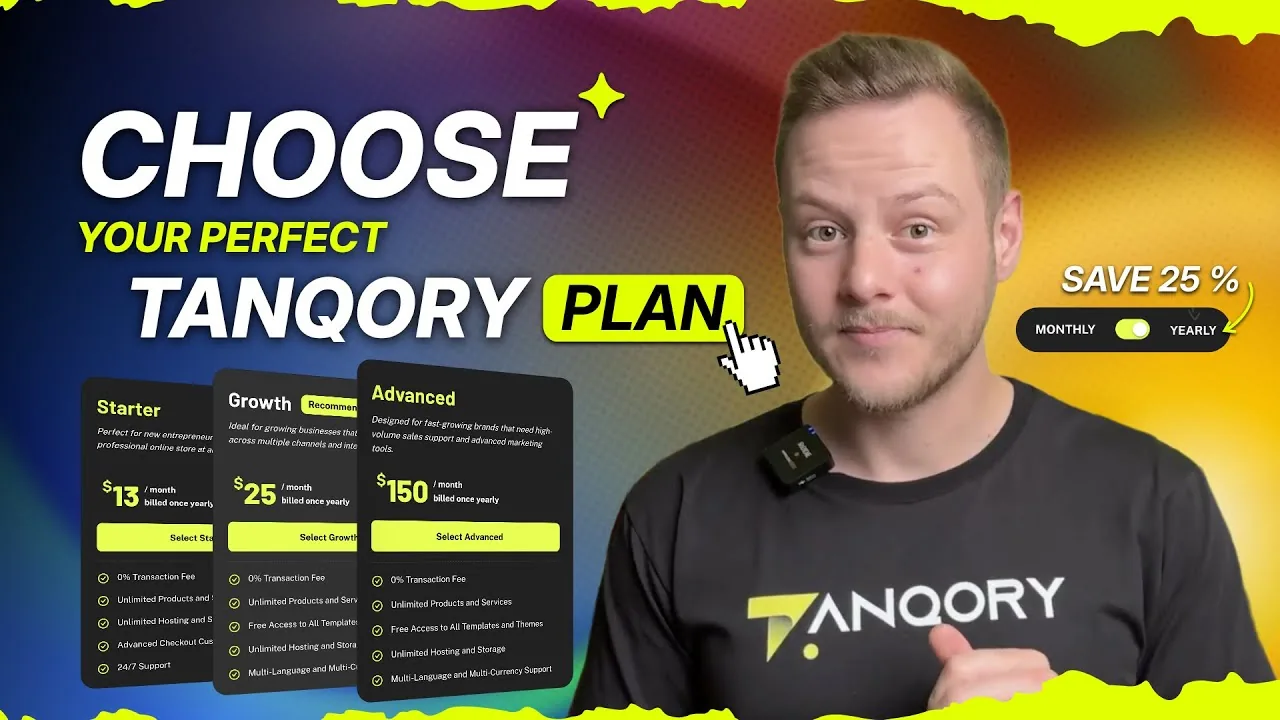 Getting Started · Lesson 4 of 6Choose Your Perfect Tanqory Plan
Starter, Growth or Advanced: see which plan fits a new store, a growing brand or a high volume team.
Free · 4 steps Getting Started · Lesson 5 of 6Set Up Billing with Tanqory
Add the payment method that keeps your subscription running, with billing details that match your business.
Free · 6 steps Getting Started · Lesson 6 of 6Launch Like a Pro
Four settings to finish before launch: the image people see when your link is shared, your search listing, a password page and spam defense.
Free · 6 steps
Or describe your store and let AI build it
Describe what you sell and Tanqory AI builds a store ready to sell: brand, theme, pages and products. You review it and change what you like, so launch day comes from one sentence instead of a week of setup.
- Acts in your admin only after you confirm
- Everyday AI work uses no AI credits
- Answers how-to questions from the Help Center
Build a store for my handmade ceramics: brand, theme, pages and the first products.
I will draft your store:
- Open the Sites page and click New Site
- Choose where you want to sell, such as an online store or social media
- Say whether you are just starting or already selling
Nothing changes until you confirm.
Learn it in order · Path 1 of 6 · 6 lessons
Getting Started
Six video lessons from an empty account to launch day: your website, the setup guide, store basics, your plan, billing and launch settings.