Tanqory AcademyTopic 7 of 7
Content and Media
Two video lessons on publishing: upload and manage your media files in one place, and write a blog post and publish it on your store.
- 2 video lessonsWatch them here or on YouTube
- Learning path
- FreeEvery Tanqory Academy lesson
- No sign-inNothing to register
The lessons on this topic
Each lesson page has the video with its steps written out beside it. Pick another topic, or search every lesson.
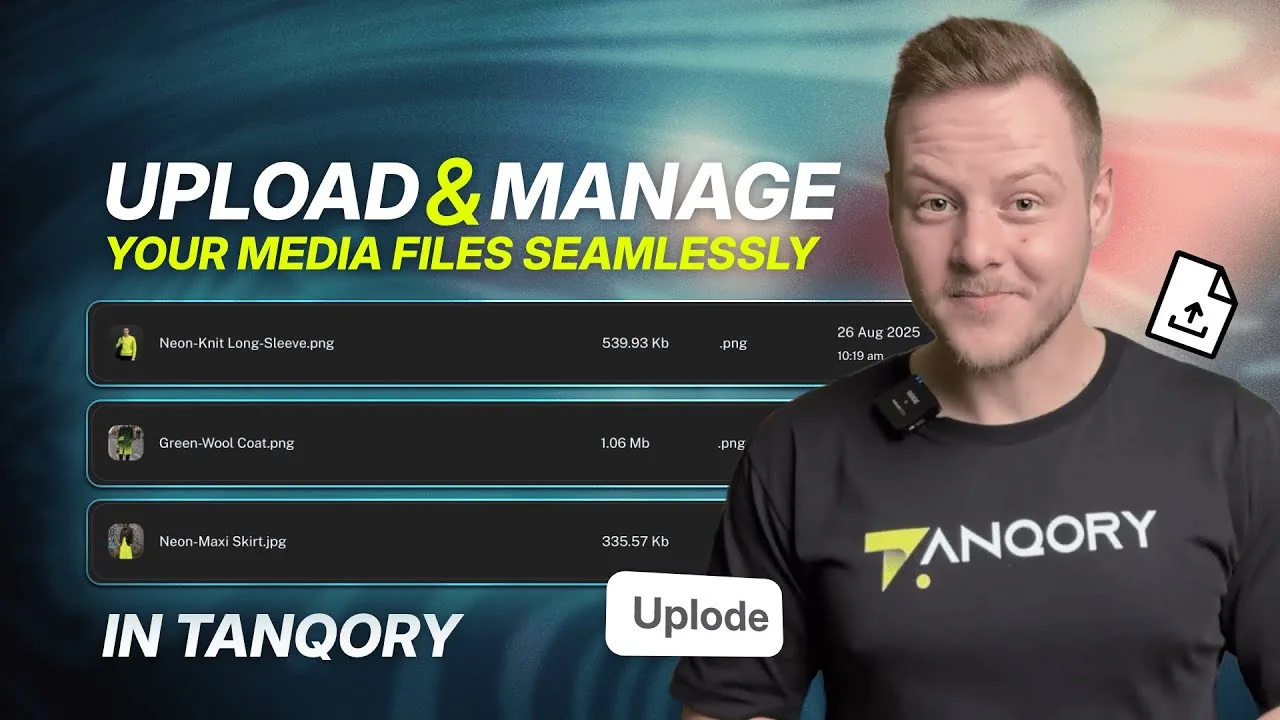 Marketing and Content · Lesson 2 of 3Upload and Manage Your Media Files in Tanqory
Keep your images, logos and brand assets in one library, ready to reuse anywhere in your store.
Free · 4 steps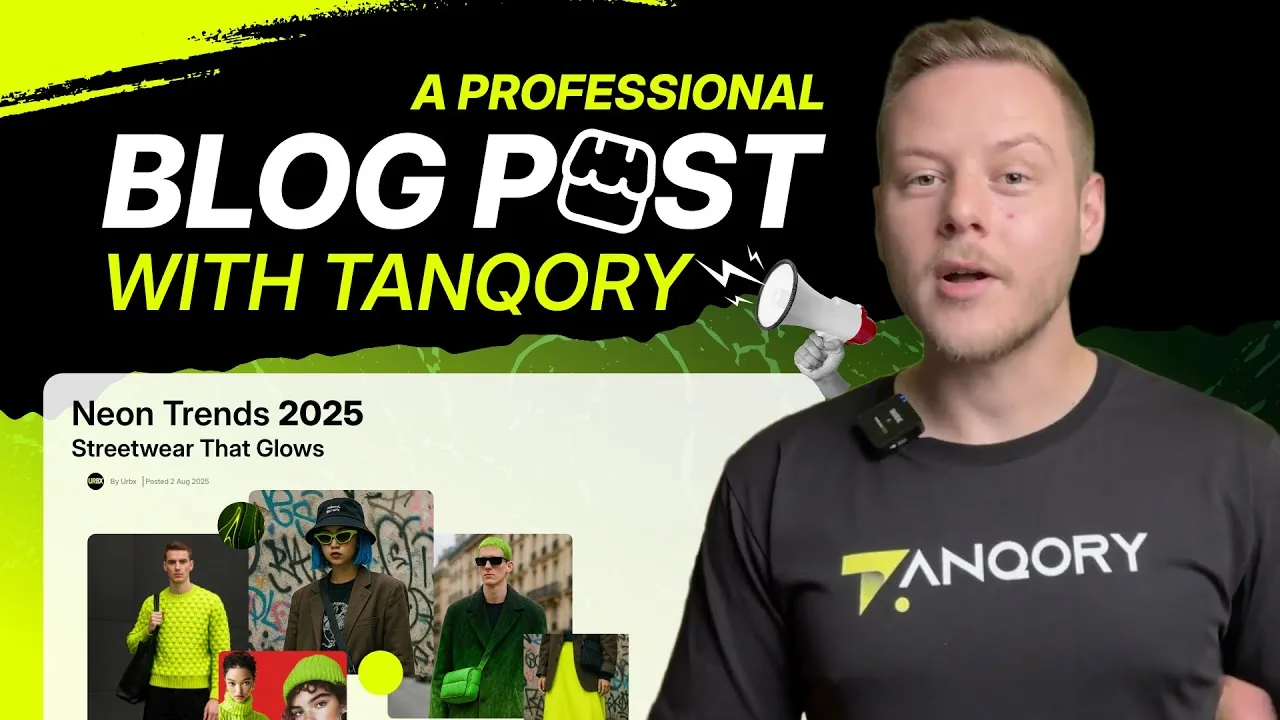 Marketing and Content · Lesson 3 of 3Write a Professional Blog Post with Tanqory
Publish articles that bring in search traffic and give shoppers a reason to come back, written and managed from your admin.
Free · 9 steps
Or hand the job to Tanqory AI
Everything this lesson shows, you can also ask for in one sentence. The assistant built into your admin does the steps across products, orders, discounts, markets, settings and more, and waits for your confirmation before it changes anything. Your team spends the time on the business, not on the clicks.
- Acts in your admin only after you confirm
- Everyday AI work uses no AI credits
- Answers how-to questions from the Help Center
Add these three photos to the linen shirt product page.
Here is what I will do in your admin:
- Open Contents, then Files, to see every asset you have uploaded
- Click Upload, then Add media, or drag and drop a file into the box
- Use the file across product images, blog posts, page covers and more
Nothing changes until you confirm.
Learn it in order · Path 6 of 6 · 3 lessons
Marketing and Content
Three video lessons on promoting and publishing: launch a discount, keep your images and brand files in one place, and write a blog post.